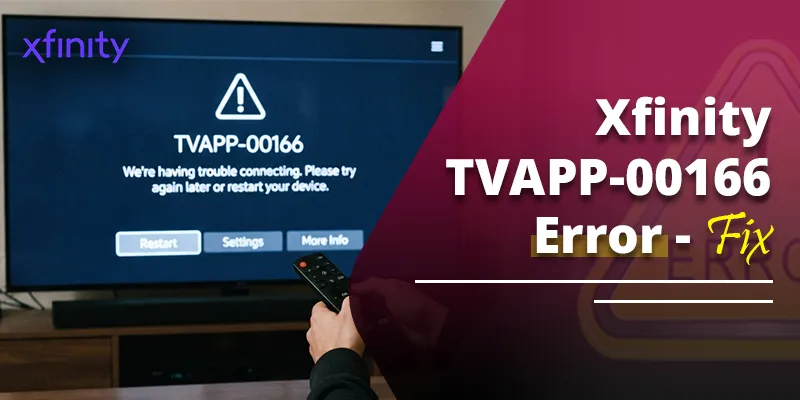
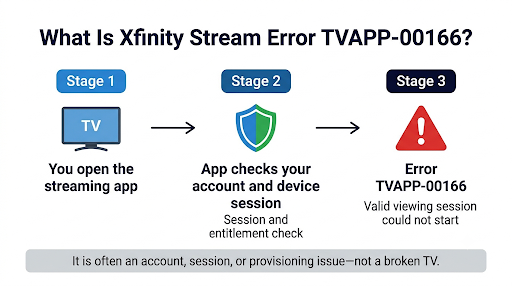
Xfinity Stream error TVAPP-00166 means the app could not start a valid viewing session for your account on that device. It usually points to an account or session problem on Xfinity’s side, not a broken TV. Restarting your gateway and TV fixes some cases. When it doesn’t, the most reliable fixes are a system refresh through the Xfinity Assistant and making sure the right account is set as your default.
This guide explains what the code means and why it hits Samsung smart TVs so often. It walks through every fix in the order most likely to work, so you can get back to watching instead of reinstalling the app for the fifth time.
Quick Overview
- Check other devices. Open Xfinity Stream on your phone or another TV. If it works there, the problem is tied to that one device or its session.
- Power cycle everything. Unplug your Xfinity gateway (or modem and router) and the TV for 60 seconds, then plug the gateway in first.
- Confirm the in-home network. The TV must be on your own Xfinity home network, not a public Xfinity WiFi hotspot, a VPN, or a neighbor’s network.
- Set the correct default account. If your Xfinity ID has more than one account linked, make your active account the default on xfinity.com.
- Run a system refresh. In the Xfinity Assistant, type “Troubleshoot Xfinity Stream” and select the TVAPP code.
- Reinstall last. Delete the app, restart the TV, update the TV firmware, and install the app again.
- Contact Xfinity if the code continues. It is often a known outage that only Xfinity can clear.
What Does Xfinity Stream Error TVAPP-00166 Mean?
TVAPP-00166 is a session or authorization error. The app reaches Xfinity’s servers but can’t confirm that your account is allowed to stream on that device right now. At least one user on the Xfinity Community Forum reported the code appearing next to the message “failed to obtain session,” which fits that pattern.
Xfinity doesn’t publish an official definition for this exact code. Still, the pattern across hundreds of forum replies is clear. The error tends to show up:
- Right after the app logs you out unexpectedly and you try to sign back in
- During activation, after you enter the code on your phone and the TV briefly shows success, then fails
- After a power outage, account change, or move to a new address
- During a wider service problem that affects certain TV models at the same time
An Xfinity representative on the forum explained that TVAPP codes tend to appear when a system refresh is needed or when there is a known issue of some kind. That’s why so many home fixes fail. The problem often lives in your account’s provisioning, not your living room.
Why Is Error TVAPP-00166 Happening on My TV?
Most cases come down to one of five causes. Use this table to match your situation to the most likely fix.
| Likely cause | Common sign | Best fix |
| Stale session or account provisioning | App logged you out, then shows TVAPP-00166 on sign-in | System refresh through the Xfinity Assistant |
| Multiple accounts linked to one Xfinity ID | You moved, had an old account, or manage more than one address | Make your active account the default on xfinity.com |
| Home network not recognized | TV uses a VPN, mesh extender, guest network, or public hotspot | Connect directly to your in-home Xfinity network |
| Known issue with certain TV models | Many Samsung owners report the same code on the same day | Wait for Xfinity’s fix, or report it so your account is included |
| Corrupted app data or outdated firmware | Only one TV fails while others in the home work | Clear cache, update firmware, reinstall the app |
Why Do Samsung Smart TVs Get This Error the Most?
Most TVAPP-00166 reports come from Samsung smart TV owners, across many states and model years. In April 2025, an Xfinity employee confirmed there was a known issue impacting some Samsung models and that many users reported it resolved later that same day. Owners also noticed odd patterns, like one Samsung TV failing while another Samsung in the same home kept working.
Samsung TVs run the Xfinity Stream app directly on the TV’s own software. So a firmware change on Samsung’s side or an app update on Xfinity’s side can break the connection between them. Samsung has published fixes for this kind of problem before. It once released a Samsung firmware update for an Xfinity app issue that affected specific 2021 models.
Is TVAPP-00166 Your Problem or Xfinity’s?
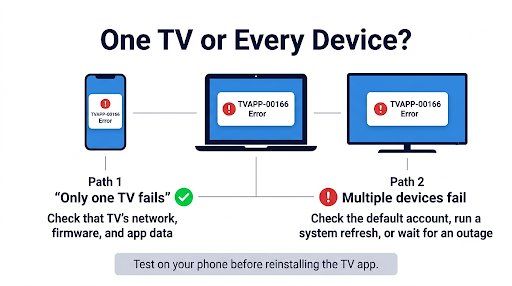
Run this two-minute test before you spend an hour troubleshooting. It tells you where to focus.
- Open the Xfinity Stream app on your phone while connected to your home WiFi.
- Try a second TV or streaming device in the house, if you have one.
- Search the Xfinity Community Forum or Reddit’s r/Comcast_Xfinity for “TVAPP-00166” and sort by newest.
If the app works everywhere except one TV, focus on that TV’s network, app data, and firmware.
If it fails on several devices, the issue is almost certainly your account. Go straight to the default account check and the system refresh.
If dozens of people posted the same code today, it’s a known issue. Report it, then wait. Reinstalling won’t help.
How Do You Fix Xfinity Stream Error TVAPP-00166?
Work through these fixes in order. They move from quick and free to the steps that only Xfinity can complete.
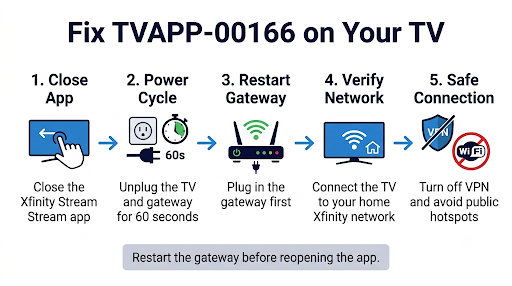
1. Restart Your Gateway and TV the Right Way
A proper power cycle forces your gateway and TV to request a fresh connection and a fresh session.
- Close the Xfinity Stream app.
- Unplug the TV from the wall, not just the remote’s power button.
- Unplug your Xfinity gateway, or your modem and router if you use your own.
- Wait at least 60 seconds.
- Plug the gateway back in first and wait until its light shows a stable connection.
- Plug the TV back in, then open the app.
Tip: If you have an X1 or Flex TV box in the home, restart it too. An Xfinity employee suggested this as a first step in one TVAPP-00166 thread.
2. Make Sure the TV Is on Your In-Home Xfinity Network
On smart TVs and streaming players, the Xfinity Stream app is available in-home only to Xfinity TV customers with Xfinity Internet, according to the official Xfinity Stream app requirements. If the app can’t confirm you’re at home, sign-in and session checks can fail.
Check these common trouble spots:
- Public Xfinity WiFi hotspots (the “xfinitywifi” network) don’t count as your home network, even inside your house.
- VPNs on your router or TV hide your home connection. Turn them off.
- Guest networks and some third-party mesh systems can isolate the TV. Connect it to your main network instead.
- Your own router behind the Xfinity gateway sometimes confuses home detection. Test by connecting the TV directly to the Xfinity gateway’s WiFi or by Ethernet.
If you see a message that the device can only access Xfinity Stream on your in-home network, that’s a separate code. Our guide on fixing Xfinity Stream error TVAPP-00101 covers home network detection in more depth.
3. Set Your Active Account as the Default
This fix gets overlooked, and it works. One user who had several Xfinity accounts reported that the error stopped as soon as they switched their active account to primary. Xfinity staff now ask affected users whether they have multiple accounts.
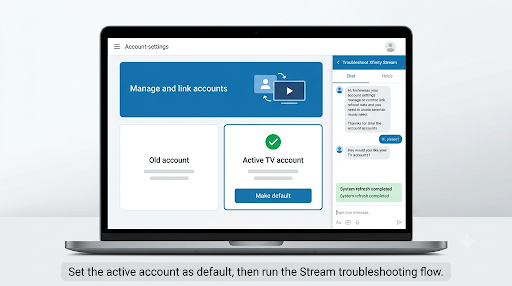
Here’s why it matters. In the Xfinity Stream app, your primary (default) account is the one that loads. If that default is an old, closed, or inactive account, the app can’t open a session with live TV rights.
To check and change your default account, follow Xfinity’s steps for managing multiple accounts with your Xfinity ID:
- Sign in at xfinity.com with your Xfinity ID.
- Click the Account icon, then select Account and Identity.
- Click Xfinity ID and Security.
- Scroll to Your Accounts and click Manage and link accounts.
- Find the account that has your current TV service and click Make default.
- Sign out of the Xfinity Stream app on your TV, restart the TV, and sign back in.
Who should try this first: anyone who moved recently, transferred service, had an account opened by mistake, or manages service at more than one address.
4. Run a System Refresh With the Xfinity Assistant
When home fixes fail, this is the step Xfinity’s own representatives recommend. It sends a refresh signal to your account and checks for known outages.
- Open the Xfinity app on your phone, or go to xfinity.com and open the Xfinity Assistant chat.
- Type Troubleshoot Xfinity Stream.
- Answer the questions until you can select your TVAPP error code.
- Let the Assistant finish. It may apply a system refresh, confirm a known issue in your area, or set up a follow-up text.
- Restart the TV and open the app again after about 15 minutes.
Several users in the April 2025 Samsung outage got a text saying their processes had completed and service should be restored. For them, that text was the actual fix.
5. Clear the App Data, Update Firmware, and Reinstall
Save this step for last. Reinstalling alone rarely fixes TVAPP-00166, but corrupted app data can block a fresh session once the account side is fixed.
- Update the TV first. Install any pending software update in your TV’s settings.
- Clear the app’s cache or data if your TV offers it. On many Samsung models, this is in the Device Care or storage section of Settings.
- Delete the Xfinity Stream app.
- Unplug the TV for 60 seconds.
- Reinstall the app from the TV’s app store and sign in again.
Common mistake: reinstalling over and over during a known outage. If the problem is on Xfinity’s side, the app will fail every time no matter how clean the install is.
6. Use a Temporary Workaround While You Wait
If the code is tied to your TV’s built-in app, you can still watch on another platform:
- Use Xfinity Stream on a phone or tablet, then cast with AirPlay or Chromecast where supported.
- Plug in a Roku, Fire TV, or Apple TV device and use its Xfinity Stream app instead.
- Watch on a computer through the Xfinity Stream web portal.
How Do You Fix TVAPP-00166 on Specific Devices?
The core fixes are the same everywhere, but each platform has its own quirks.
| Device | What to check |
| Samsung smart TV | Install the latest firmware, clear app data in Device Care, and check for a known Samsung-related outage before reinstalling. |
| LG smart TV | Update webOS, confirm the TV is on your main home network, then delete and reinstall the app. |
| Roku | Xfinity requires Roku OS 11.0 or later. Restart from Settings, then remove and re-add the Xfinity Stream channel. |
| Amazon Fire TV or Fire Stick | Xfinity requires Fire OS 6 or later. Clear the app’s cache and data in Applications settings. |
| Apple TV | Update tvOS and connect directly to your in-home Xfinity network. Some users saw TVAPP-00166 on Apple TV during activation. |
| Xumo TV or Xumo Stream Box | Restart the device and run the Xfinity Assistant refresh, since these are tied closely to your Xfinity account. |
| iPhone, iPad, or Android | Xfinity requires iOS 15.0 or later and Android 7.0 or later. Update the app and sign out, then back in. |
| PC or Mac browser | Clear the browser cache, turn off VPN or proxy settings, and try a private window. |
What Should You Avoid When Fixing TVAPP-00166?
These habits waste time or make things worse:
- Factory resetting the TV first. One user reset a Samsung to factory defaults and still got the same code. Save resets for when Xfinity confirms the account side is clean.
- Using a phone hotspot to “trick” the app. It sometimes helps with other errors. During TVAPP-00166 outages, users reported it made no difference, and live TV on smart TVs needs your home network anyway.
- Calling Samsung first. Several users were sent to Samsung, which found nothing wrong with the TV. Start with Xfinity unless only that TV fails and a firmware update is pending.
- Ignoring old accounts. A closed account from a past address can still be your default and block the app quietly.
How Is TVAPP-00166 Different From Other Xfinity Stream Errors?
Xfinity Stream has dozens of TVAPP codes, and they often get confused. Knowing which one you have saves you from following the wrong fix.
| Error or message | What it usually means |
| TVAPP-00166 | The app can’t open a valid session for your account on this device. |
| TVAPP-00101 | The device isn’t recognized as being on your in-home Xfinity network. |
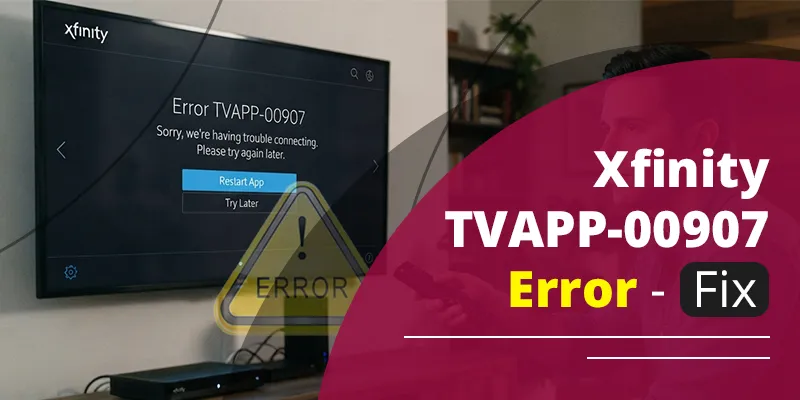
| TVAPP-00907 | A separate playback or service error with its own fix path. See our Xfinity Stream TVAPP-00907 troubleshooting guide. |
| Repeated sign-outs | If the app keeps kicking you back to the sign-in screen, read how to fix the Xfinity Stream sign-in loop. |
| “Upgrade failure, please restart” | An app update didn’t install correctly. Follow our steps for the Xfinity Stream upgrade failure message. |
When Should You Contact Xfinity Support?
Contact Xfinity if the error lasts more than a few hours after a power cycle, a default account check, and an Assistant refresh. At that point, the fix almost always needs a technician to refresh or correct your account.
To get a faster answer, have this ready:
- The exact code: TVAPP-00166
- Your TV brand, model number, and software version
- Whether other devices in your home stream normally
- Everything you already tried, so the agent skips the basics
- Whether you have more than one Xfinity account linked to your ID
You can also post on the Xfinity Community Forum. Official employees there often move you to a direct message with Xfinity Support, where they can look at your account. One forum user filed a complaint and got a text the next morning saying the issue was fixed.
Frequently Asked Questions
Can I watch Xfinity Stream on my smart TV away from home?
Not on smart TVs and streaming players for full live TV. Those apps are designed for in-home use. Phones, tablets, and computers can stream TV Go channels and cloud DVR recordings outside the home. Learn more about watching Xfinity Stream outside your home network.
Why does TVAPP-00166 show on one Samsung TV but not the other?
Each TV holds its own session, firmware version, and app data. A newer or older model may run different software that reacts differently to an Xfinity app update. Compare the software versions of both TVs and update the one that’s behind.
Does TVAPP-00166 mean my Xfinity account was suspended?
Not usually. The code points to a session or provisioning problem, not a billing hold. If your bill is past due, check the Xfinity app for account alerts, since service holds can block streaming on every device at once.
How long does an Xfinity system refresh take to fix the error?
Many refreshes finish within minutes, but some users waited one to two hours during wider outages. Restart the TV after the refresh. If nothing changes within a day, contact support again and ask for an escalation ticket.
Will a VPN help fix Xfinity Stream error TVAPP-00166?
No. A VPN hides your home connection, which the app needs for in-home streaming on TVs. Turn off any VPN on your router or TV before troubleshooting further.
Can too many devices streaming at once cause Xfinity Stream errors?
Xfinity allows most TV customers to stream on up to five devices at the same time in the home. Hitting that limit shows its own message rather than TVAPP-00166, but closing unused streams is a quick way to rule it out.
Final Recommendation
Start with the two-minute test. If only one TV fails, power cycle it, confirm it’s on your home network, and update its firmware. If more than one device fails, or the app logged you out right before the error, skip the reinstalls. Check your default account on xfinity.com, then run “Troubleshoot Xfinity Stream” in the Xfinity Assistant. Those two steps fix more TVAPP-00166 cases than anything you can do with the remote. If the code is still there after that, contact Xfinity and ask them to refresh your account’s Stream entitlements.