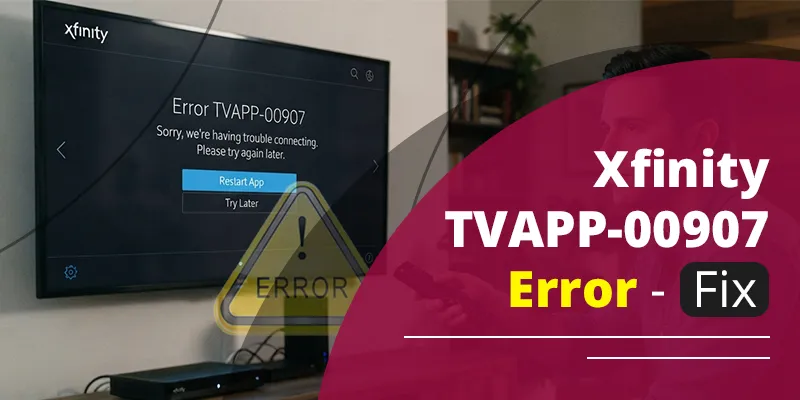
Xfinity Stream error TVAPP-00907 means the app couldn’t finish a background “transaction” with Xfinity’s Locker service, so it won’t play the program you picked. Most of the time the problem is on Xfinity’s end and goes away on its own. Wait a few minutes and try again, then restart the app and sign back in if the error keeps coming back.
This guide covers what the error actually means, why it shows up, and the fixes to try in order, from the 30-second ones to the point where you should contact Xfinity.
Quick Overview
| Item | Details |
| Error message | “Sorry, we’re having some trouble. This program is not available to watch at the moment. Please try again in a few minutes.” |
| Official cause | Locker error (500-106): an unhandled error or communication problem with the Locker service |
| Who’s usually at fault | Xfinity’s servers, not your device |
| First fix | Wait a few minutes and try playing the program again |
| If it keeps happening | Restart the app, sign out and back in, power-cycle your device and modem, then contact Xfinity |
What Does Error TVAPP-00907 Mean?
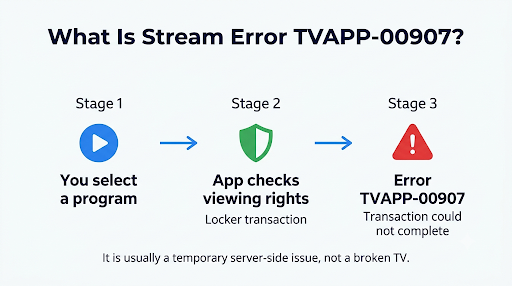
TVAPP-00907 is a Locker communication error. Xfinity’s own support page for error code TVAPP-00907 lists the cause as “Locker: Any other unhandled error, or communication issue” and says the transaction isn’t currently available. The official fix is short: try again later, and contact Xfinity if it continues.
In plain English, before a title plays, the app checks with Xfinity’s backend to confirm you’re allowed to watch it. That check is the “transaction.” If the service handling it doesn’t respond, or responds with something the app doesn’t expect, you get TVAPP-00907 instead of your show.
It helps to know where this code sits. The TVAPP-009xx codes are a family of transaction errors. For example:
- TVAPP-00901: A Purchase PIN is needed to finish the transaction (Xfinity’s TVAPP-00901 page).
- TVAPP-00905: The offer isn’t available right now, so the title can’t be played or bought.
- TVAPP-00907: The catch-all Locker error, when something went wrong that doesn’t fit a more specific code.
Because 00907 is the “everything else” code, it doesn’t point to one exact cause. That’s why the fixes below start broad and get more specific.
Why Is TVAPP-00907 Showing Up on Xfinity Stream?
The most common reason is a short-lived glitch on Xfinity’s servers. Your device, Wi-Fi, and account can all be fine, and the error still appears because the backend didn’t answer in time.
Other causes worth ruling out:
- Temporary server or service outage: The Locker service or a related system is down or slow in your area.
- Recent account or package changes: If you just added, removed, or changed channels or a TV package, your viewing rights may not have finished updating yet.
- Stale app data: Old cached data in the app or browser can carry an outdated session or entitlement.
- Sign-in or session problems: An expired or half-broken login can stop the app from completing the check.
- Network hiccups: A brief drop in your internet connection during playback setup can cut off the transaction.
- Title availability: Sometimes the specific program, rental, or On Demand title is having trouble, while everything else plays fine.
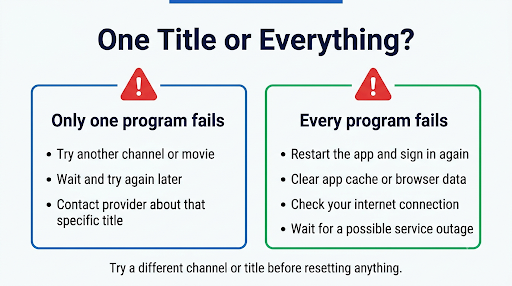
Quick test: Try a different channel or title. If other programs play and only one fails, the issue is likely tied to that title or its rights, not your setup. If nothing plays, focus on your app, account, and network.
How Do You Fix Xfinity Stream Error TVAPP-00907?
Work through these steps in order. Each one takes a little more effort than the last, so you won’t waste time on a router reboot if a simple retry would have worked.
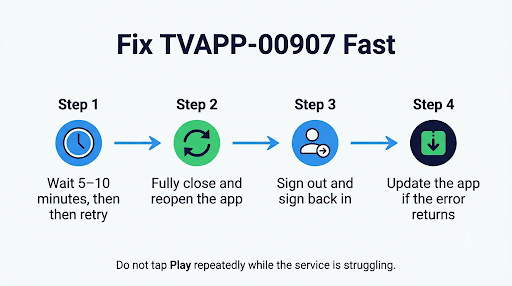
1. Wait a Few Minutes and Try Again
This is Xfinity’s official first step, and it works more often than you’d expect. Give it 5 to 10 minutes, then play the program again. Don’t hammer the play button over and over in the meantime. Each attempt starts a new transaction, and rapid retries rarely help while the service is struggling.
2. Fully Close and Reopen the App
Quitting the app clears its current session and forces a fresh connection.
- iPhone or iPad: Swipe up from the bottom (or double-press Home), then swipe the Xfinity Stream app away.
- Android: Open recent apps and swipe it away, or go to Settings, Apps, Xfinity Stream, and tap Force stop.
- Roku, smart TV, or streaming stick: Exit to the home screen. Some TVs keep apps running in the background, so a full TV restart is more reliable.
- Web browser: Close the Xfinity Stream tab, then reopen it in a new tab.
Wait about a minute before reopening so the old session has time to end.
3. Sign Out and Sign Back In
Logging out and back in refreshes your account details and viewing rights inside the app. Open the app’s settings, choose Sign Out, then sign in again with your Xfinity ID and password.
If you get stuck in a loop where the app keeps asking you to sign in or kicks you out right away, that’s a separate problem. Our guide on fixing the Xfinity Stream sign-in loop walks through it.
4. Clear the App Cache or Browser Data
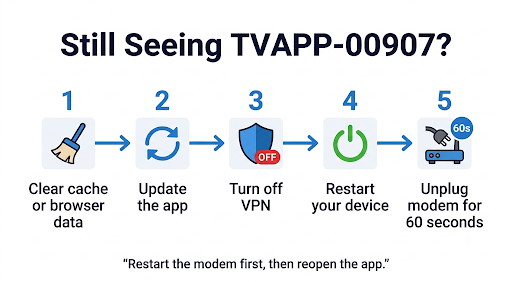
Cached data can hold on to an outdated session even after a restart.
- Android: Settings, Apps, Xfinity Stream, Storage, then Clear cache.
- iPhone or iPad: iOS doesn’t offer a cache button, so delete and reinstall the app instead.
- Roku: Remove the Xfinity Stream channel, restart the Roku, and add the channel again.
- Browser: Clear cookies and cached files for xfinity.com, or try a private or incognito window first as a quick test.
Tip: Testing in an incognito window is a fast way to find out if cached browser data is the culprit before you wipe everything.
5. Update the Xfinity Stream App
An older app version may not handle new backend responses well. Check your device’s app store for updates. On smart TVs and streaming devices, also check for a system update, since app updates sometimes depend on it.
If the app asks you to restart after an update and then fails to load, see our fix for the Xfinity Stream “Upgrade Failure, Please Restart” error.
6. Restart Your Device, Modem, and Router
A power cycle clears temporary network problems that can interrupt the transaction.
- Turn off your streaming device, TV, phone, or computer.
- Unplug your modem or Xfinity Gateway from power.
- Wait at least 60 seconds.
- Plug the modem back in and wait until the lights show it’s fully online.
- Turn your device back on and try the program again.
Also turn off any VPN or proxy. Xfinity Stream checks where you’re connecting from, and a VPN can confuse that check.
7. Give Recent Account Changes Time to Sync
If you changed your TV package, added a premium channel, or updated your account recently, your permissions may still be updating across Xfinity’s systems. This usually settles within a few hours. If it’s been a full day and the error continues on that channel, contact Xfinity so they can refresh your account.
8. Check for an Outage and Contact Xfinity
If none of the steps above work, the problem is almost certainly on Xfinity’s side. Open the Xfinity app and check for service issues in your area, or ask Xfinity Assistant. When you reach support, tell them:
- The exact code: TVAPP-00907
- The device you’re using (Roku, Samsung TV, iPhone, browser, and so on)
- Whether it affects one title or everything
- Any recent account or package changes
- The steps you’ve already tried
That saves you from repeating basic troubleshooting on the call and helps the agent refresh or reprovision your account faster.
Does TVAPP-00907 Mean Something Is Wrong With My TV or Phone?
Usually, no. Xfinity describes it as a communication issue with its Locker service, which lives on Xfinity’s servers. Your device only shows the message. That said, an outdated app, stale cache, or weak connection can make the error more likely, which is why the device-side steps above are still worth trying.
A good sign it’s server-side: the same error appears on several devices at the same time, like your TV and your phone.
How Is TVAPP-00907 Different From Other Xfinity Stream Errors?
TVAPP-00907 is about a failed transaction, not your location or your network. That’s the main difference from some of the codes people confuse it with.
| Error | What it’s about | Typical fix |
| TVAPP-00907 | Locker transaction or communication failure | Wait, retry, restart the app, sign back in |
| TVAPP-00905 | The offer or title isn’t available right now | Check back later, programming changes often |
| TVAPP-00901 | Purchase PIN needed | Enter or set your Purchase PIN |
| TVAPP-00101 | The app doesn’t think you’re on your home network | Connect to your in-home Xfinity network |
| TVAPP-00166 | App or account access problem on a device | Reinstall, sign in again, check device setup |
If your screen says you need to be on your home network, you’re dealing with a different issue. Our guide to Xfinity Stream error TVAPP-00101 covers that one, and the TVAPP-00166 fix guide helps if the app won’t let you in at all.
What Mistakes Make TVAPP-00907 Harder to Fix?
The biggest mistake is jumping straight to a factory reset. A reset wipes your device settings and other apps, and it won’t fix a problem that lives on Xfinity’s servers.
Other mistakes to avoid:
- Retrying nonstop: Rapid replays don’t help while the service is down. Waiting a few minutes does.
- Leaving a VPN on: It can trigger location checks and hide what’s really going on.
- Skipping the “other title” test: Knowing whether one program or everything fails tells you where to look.
- Calling support without the code: Always give the exact code. “It won’t play” sends you back to step one.
Frequently Asked Questions
How long does Xfinity Stream error TVAPP-00907 usually last?
Often just a few minutes. When it’s caused by a short server glitch, it clears up on its own. If it lasts more than a few hours across several devices, there may be a larger outage or an account issue that Xfinity needs to fix.
Can I still watch other channels while TVAPP-00907 shows up?
Many times, yes. The error can be limited to one title, rental, or channel. Switching to something else is a good way to keep watching while you wait and to narrow down the cause.
Will reinstalling the Xfinity Stream app fix TVAPP-00907?
It can, if stale app data is part of the problem. But it won’t help when Xfinity’s Locker service itself is having trouble. Try waiting, restarting, and signing back in first, since those are faster and fix most cases.
Does TVAPP-00907 happen when I’m away from home?
It can appear anywhere, but it isn’t a location error. If you’re traveling and some live channels won’t play, that’s usually because of out-of-home streaming limits. Here’s how to watch Xfinity Stream outside your home network and what to expect.
Will I be charged if TVAPP-00907 appears while renting a movie?
The error means the transaction didn’t complete, so it typically shouldn’t go through. Check your Purchases list in the app or your Xfinity account to confirm. If you see a charge for something you couldn’t watch, contact Xfinity and ask about a credit.
Is TVAPP-00907 caused by my internet speed?
Slow internet usually causes buffering, not this code. A complete connection drop at the wrong moment can interrupt the transaction, though. If your other apps stream fine, your speed probably isn’t the issue.
Final Recommendation
Start simple. Wait a few minutes, then retry. If the error comes back, fully close the app, sign out and back in, and clear the cache or reinstall. Still stuck? Power-cycle your device and modem and turn off any VPN.
If TVAPP-00907 keeps showing up after all of that, stop troubleshooting on your end and contact Xfinity. Give them the exact code, your device, and what you’ve tried. At that point, the fix is almost always on their side, such as a service repair or an account refresh.