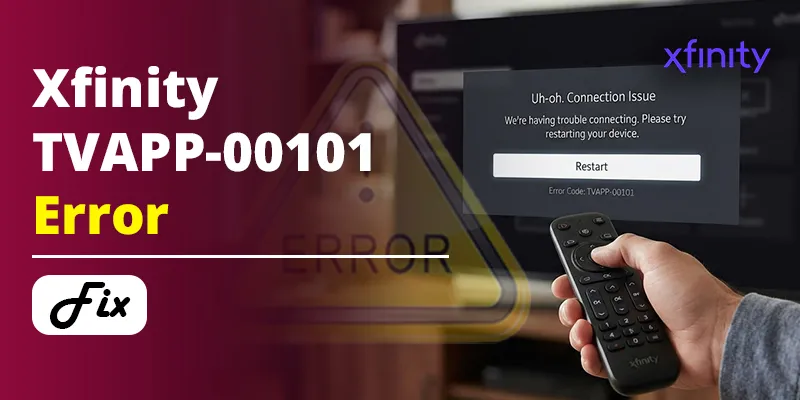
Xfinity Stream error TVAPP-00101 means the app can’t confirm that your TV or streaming device is on your in-home Xfinity network. It also shows up when your Xfinity login is tied to a different account than the one your modem belongs to. In most homes, the fix is to confirm the right Wi-Fi network, restart the app, and make sure your Xfinity accounts are linked under one Xfinity ID.
The error often appears on Roku, Samsung, and LG smart TVs even when everything looks connected. The steps below walk you from the quick checks to the account and modem fixes that usually solve the stubborn cases.
Quick Overview
| What you see | Most likely cause | Fix to try first |
| Error appears on one TV only | That device is on a different network, a guest network, or a VPN | Reconnect it to your main home Xfinity Wi-Fi and restart the app |
| Error appears on every TV and streaming stick | Account mismatch or a modem that isn’t fully provisioned | Link your Xfinity accounts, then ask Xfinity to reprovision the modem |
| Error started right after a move or new modem | Your account still lists the old gateway or old address | Have Xfinity update the equipment on your account |
| Phone app works, TV app doesn’t | TV apps are limited to in-home use, so network checks are stricter | Verify the TV is on the same network tied to your TV account |
What Does Xfinity Stream Error TVAPP-00101 Mean?
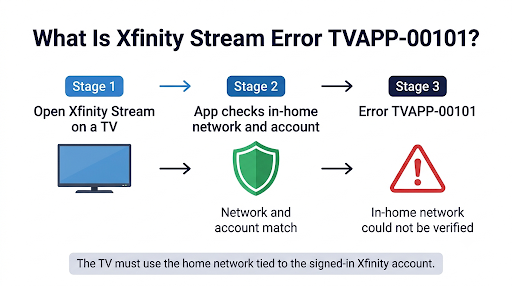
TVAPP-00101 is an in-home network verification error. Xfinity’s own support page lists two causes: you may not be connected to your in-home network, or you may have activation issues if you have two or more Xfinity accounts.
On most TVs, the full message reads: “Welcome! This device can only access Xfinity Stream on your in-home Xfinity WiFi.” That wording comes straight from the official Xfinity TVAPP-00101 support article.
Here’s why it happens. Xfinity limits live TV on big-screen devices like Roku, Samsung, and LG TVs to your home. The app checks whether your device’s internet connection matches the Xfinity account you signed in with. If the network, the modem, or the account doesn’t line up, the app blocks playback and shows TVAPP-00101.
Phones, tablets, and laptops have more flexibility, which is why the app may work on your iPhone but not on your Roku. If you want to understand what you can and can’t watch away from home, see our guide on watching Xfinity Stream outside your home network.
Why Does TVAPP-00101 Show Up When I’m Connected to My Home Wi-Fi?
Being on Wi-Fi isn’t enough. The app needs to see that the connection comes from the modem registered to the same Xfinity account you used to sign in. Several things can break that match even when your TV shows full signal:
- Multiple Xfinity accounts. You might have one account for internet and a separate one for TV, or an old account from a previous address. If your Xfinity ID points to the wrong one, the app thinks you’re out of home.
- A replaced or deprovisioned modem. Several Roku Community users reported that after swapping gateways, their account still showed the old device. Others said the error cleared only after an Xfinity tech reprovisioned the modem.
- Using someone else’s account. A device signed in with Account A won’t work on a network that belongs to Account B, even if both accounts are active.
- VPN, proxy, or a second internet provider. If your traffic leaves through anything other than your Comcast connection, the location check fails.
- Guest or extender networks. Some guest Wi-Fi networks and public xfinitywifi hotspots won’t pass the in-home check.
- Temporary service problems. Xfinity has had outages that caused TVAPP errors for many users at once. These clear on their own once the issue is fixed.
How Do You Fix Xfinity Stream Error TVAPP-00101?
Work through these steps in order. The first few take a minute each. The later ones fix the account and modem problems that cause most repeat cases.
1. Confirm the device is on your main home network
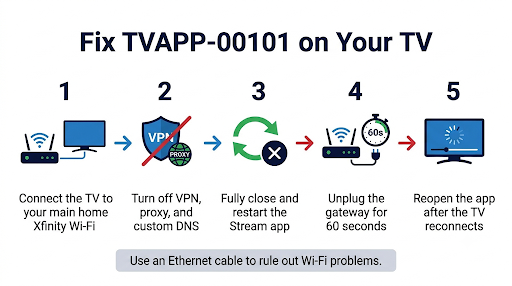
Open your TV or streaming device’s network settings and check the network name. It should be your own home Xfinity Wi-Fi, not a neighbor’s network, a guest network, or the public xfinitywifi hotspot. If you have a mesh system or extender, try connecting the TV directly to the main gateway’s network.
Tip: If your TV has an Ethernet port, plugging it directly into the Xfinity gateway is the fastest way to rule out Wi-Fi as the cause.
2. Turn off any VPN, proxy, or private DNS
A VPN on your router, phone hotspot, or streaming device can make your connection look like it’s coming from somewhere else. Turn it off completely, then reopen the app. The same goes for custom DNS services and ad-blocking routers that reroute traffic.
3. Fully close and restart the Xfinity Stream app
Exit the app instead of just pressing Home. Then restart the TV or streaming device. The simplest method that works on nearly every model is to unplug it from power for about 60 seconds, then plug it back in.
4. Restart your Xfinity modem or gateway
Unplug the gateway for at least 60 seconds, then plug it back in and wait until the lights show it’s fully online. This forces a fresh connection to Xfinity, which can clear a stale network check. Give your TV a minute to reconnect before you open the app again.
5. Sign out of the app and sign back in
Signing out resets the account and activation details stored on the device. Sign back in with the Xfinity ID that belongs to the account at your current address. If the app keeps kicking you back to the sign-in screen instead, our guide on fixing the Xfinity Stream sign-in loop covers that separate problem.
6. Update or reinstall the Xfinity Stream app
An outdated app can fail the activation process. Check your device’s app store for updates. If that doesn’t help, uninstall the app, restart the device, and install it again. If the app refuses to update or keeps asking you to restart, follow our steps for the Xfinity Stream upgrade failure error.
7. Link your Xfinity accounts under one Xfinity ID
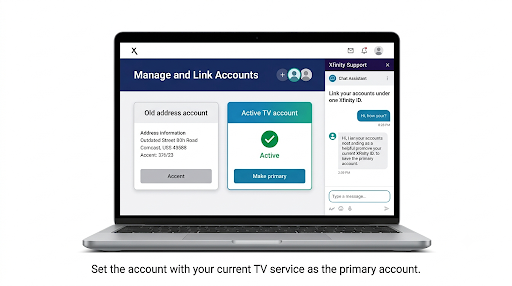
This is the fix Xfinity recommends when you have two or more accounts. Linking lets one Xfinity ID manage several accounts or addresses. According to Xfinity’s guide to managing multiple accounts, the steps are:
- Sign in at xfinity.com.
- Go to your account settings and select Xfinity ID and Security.
- Scroll to Your Accounts and click Manage and link accounts.
- Verify your identity with a code sent by text, email, or a notification in the Xfinity app.
- Link the account that holds your TV service at your current address.
Important: Xfinity Stream always shows your primary account. If your primary account is an old address or an internet-only account, change the primary account under Your linked accounts, then sign out of the TV app and sign back in.
8. Ask Xfinity to reprovision your modem
If none of the steps above work, the problem is likely on Xfinity’s side. Contact Xfinity support and ask them to:
- Confirm that the gateway listed on your account matches the one in your home (check the MAC address on the label).
- Confirm that your TV service and internet service are on the same account.
- Remove and re-add (reprovision) your modem on the account.
Using the word “reprovision” helps. Several users on the Roku Community and Xfinity forums said regular support couldn’t fix TVAPP-00101 until they asked for this specific step. It’s also common after a move or a modem swap.
Does the Fix Change on Roku, Samsung, or LG TVs?
The cause is the same on every device, but some patterns stand out.
| Device | Common pattern | Extra step worth trying |
| Roku TV or Roku stick | Most reported device for TVAPP-00101, often on all Rokus in the home at once | Remove the Xfinity Stream channel, restart the Roku, then add it again |
| Samsung smart TV | Channels won’t load even though the TV is on the home network | Reinstall the app and check that the TV isn’t using a saved guest network |
| LG smart TV | Error appears when the TV moves to a new location, like a second home or RV | Live TV only works on the home network tied to your account, so use a phone or tablet away from home |
| Apple TV or Fire TV | Some users see it even on a wired Ethernet connection | Rule out account linking and modem provisioning, since the network itself is fine |
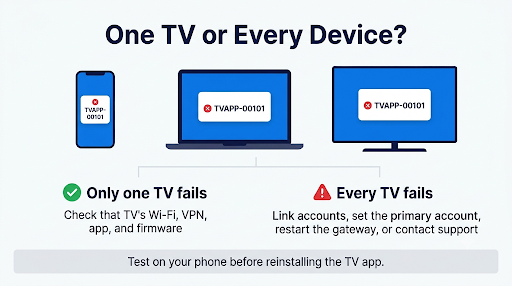
When the error hits every TV in your home at the same moment, skip the device fixes. That pattern points to your account, your modem, or an Xfinity outage.
What Mistakes Make TVAPP-00101 Harder to Fix?
- Reinstalling over and over. If linking accounts or reprovisioning is the real fix, reinstalling the app won’t change anything.
- Signing in with a family member’s login. The app checks the account against the modem. A relative’s valid login still fails on your network.
- Forgetting about the old account after a move. An old address left as your primary account is one of the most common causes.
- Leaving a router VPN on. A VPN set up on the router affects every device, including the TV, even if you forgot it was there.
- Testing on a phone only. The phone app has different rules, so it working there doesn’t prove the TV setup is right.
Is TVAPP-00101 Related to Other Xfinity Stream Error Codes?
Yes, TVAPP errors are a family of codes, and several share the same root causes of account, network, or app problems. TVAPP-00101 is specific to in-home network verification. If you see a different code after fixing this one, it usually points to a separate issue. For example, our guide on Xfinity Stream error TVAPP-00166 covers another common error, and you can find step-by-step fixes in our article on Xfinity Stream error TVAPP-00907.
Frequently Asked Questions
Why does Xfinity Stream say I’m not on my in-home network when I am?
Usually because the account you signed in with doesn’t match the account your modem is registered to. Linking your accounts or setting the correct primary account fixes most of these cases. If not, your modem may need to be reprovisioned.
Can I fix TVAPP-00101 if I use my own modem instead of an Xfinity gateway?
Yes. Customer-owned modems can still pass the in-home check, but the modem has to be activated on the same Xfinity account that holds your TV service. If you recently installed your own modem, ask Xfinity to confirm it’s listed correctly on your account.
Why can I watch my recordings but not live TV?
Some users report that saved recordings still play while live channels show TVAPP-00101. Live TV is more tightly restricted to your home network, so a failed network check hits live channels first. The same fixes apply.
Will TVAPP-00101 go away on its own?
Only if it was caused by a temporary Xfinity outage. If it lasts more than a day, or started after a move, a new modem, or an account change, it won’t clear without action on your part or Xfinity’s.
Can I use Xfinity Stream on my TV at a vacation home or in an RV?
Not for live TV on a smart TV or Roku unless that location has Xfinity internet on the same account. Away from home, use the Xfinity Stream app on a phone, tablet, or laptop, where more content is available on the go.
Does having two internet providers cause TVAPP-00101?
It can. If your router sends some traffic through a non-Comcast connection, the app may not see your Xfinity network. One Roku Community user fixed it by making sure Comcast-related traffic, such as comcast.net and xcal.tv addresses, went out through the Comcast connection.
Final Recommendation
Start simple: confirm your TV is on your main home Xfinity Wi-Fi, turn off any VPN, and restart the app, TV, and gateway. If the error affects every TV in your home, go straight to linking your Xfinity accounts and setting the right primary account. And if it still won’t clear, contact Xfinity and ask them to verify your gateway and reprovision your modem. That last step fixes the stubborn TVAPP-00101 cases that no amount of reinstalling will touch.