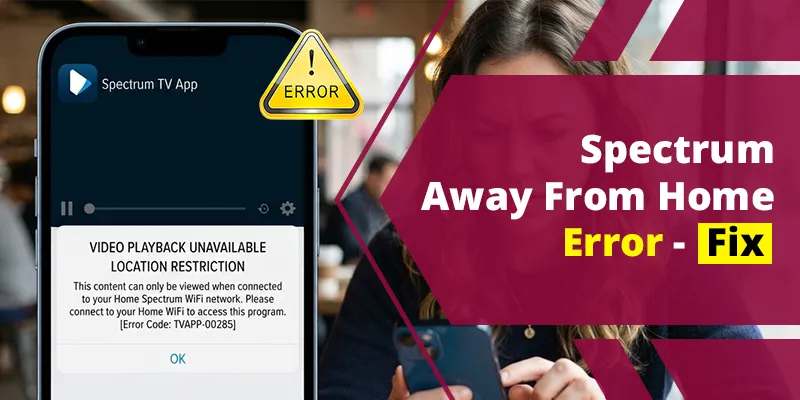
The Spectrum TV app shows “We See You’re Away From Home” (error code WLC-1006) when it can’t confirm that your device is on your in-home Spectrum Internet network. When that happens, the app switches you to the smaller out-of-home lineup, so some channels, On Demand titles, and DVR recordings disappear.
If you really are away, this is normal. If you’re sitting on your couch at home and still see it, something on your device or network is hiding your home connection. A VPN, the wrong Wi-Fi network, or a third-party router is the cause in most cases. This guide shows you how to find which one it is and fix it on iPhone, Android, Roku, Apple TV, smart TVs, and web browsers.
Quick Overview
- What it means: Spectrum thinks you’re outside your home network, so only out-of-home channels are available.
- Error code: WLC-1006.
- Most common causes at home: VPN or private relay turned on, device on cellular data or a different Wi-Fi, location permission off, a non-Spectrum router or mesh system changing your connection, or no Spectrum Internet service at the address.
- Fastest fix: Turn off any VPN, connect to your main Spectrum Wi-Fi, allow location access, then force-close and reopen the app.
- If you’re truly away: You can’t unlock the full lineup. Only out-of-home channels work, and out-of-home streams are limited.
What Does “We See You’re Away From Home” Mean on the Spectrum TV App?
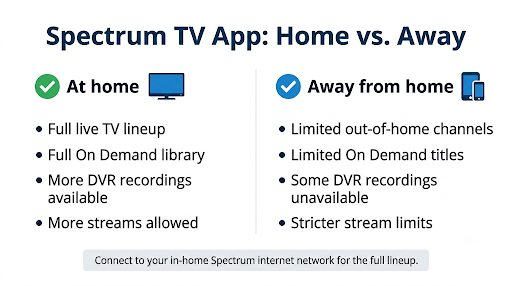
It means the app has decided you’re watching outside your home Spectrum network. Spectrum’s own support moderators describe WLC-1006 this way and give one core fix: connect to your in-home WiFi network, then restart the app.
The reason this message exists is content rights. Many networks only let Spectrum stream their channels inside your home. Spectrum’s app listing says it plainly: some programming is available only when connected to your home Spectrum Internet service.
Here’s what changes when the app thinks you’re away:
| Feature | On your home Spectrum network | Away from home (out-of-home) |
| Live TV channels | Full lineup from your TV plan | Limited; in-home-only channels are locked |
| On Demand | Full library for your plan | Limited titles |
| Cloud DVR recordings | Available | Some recordings may not play |
| Simultaneous streams | More streams allowed | Stricter stream limits |
| Outside the United States | Not applicable | App doesn’t work at all |
On Roku and some other devices, channels that need your home network show a small house icon. If you see lots of house icons and a WLC-1006 banner, the app is treating you as away.
How Does the Spectrum TV App Know You’re Away From Home?
The app mainly checks whether your internet traffic is coming from the Spectrum Internet connection tied to your account. It also uses your device’s location services on mobile devices and looks for signs of a VPN.
That explains why the error can show up even when you’re physically home. If anything changes how your connection looks to Spectrum, the app can’t match it to your account. Common examples:
- Your traffic is routed through a VPN server in another city.
- Your phone quietly switched to 5G or LTE because Wi-Fi was weak.
- Your mesh router or security feature sends traffic through its own servers.
- Your home internet is from another provider, even though your TV service is from Spectrum.
Why Does the Spectrum App Say I’m Away From Home When I’m Home?
Usually because your device isn’t using your Spectrum connection directly, or the app can’t read your location. Work through the causes below in order. Each one is quick to check.
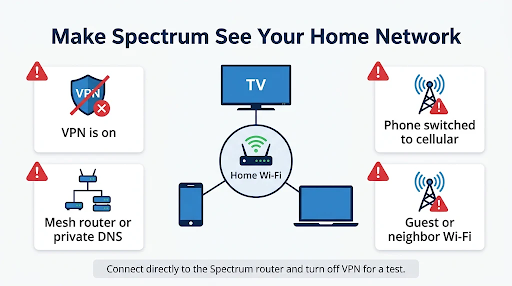
1. A VPN, Proxy, or Private Relay Is On
This is the most common cause. A VPN makes your connection look like it’s coming from somewhere else, so Spectrum treats you as away. Spectrum’s community and review sites like Allconnect note that you can’t use the app while connected to a VPN.
Turn off every VPN, including ones built into antivirus apps, browsers, and routers. On iPhone, also try turning off iCloud Private Relay under Settings, then your name, then iCloud, then Private Relay. It mainly affects Safari, but it’s worth ruling out if you watch at watch.spectrum.net.
2. Your Device Is on Cellular Data, a Hotspot, or the Wrong Wi-Fi
Phones love to drop weak Wi-Fi and jump to mobile data. The moment that happens, you’re “away.” Check that:
- Wi-Fi is on and connected to your main Spectrum network name.
- You aren’t on a neighbor’s network, a guest network, or a phone hotspot.
- Wi-Fi Assist (iPhone) or Adaptive Wi-Fi/Switch to mobile data (Android) isn’t pushing you to cellular. Turning these off while you watch can help.
3. Location Permission Is Turned Off
On phones and tablets, Spectrum uses location to confirm where you are. Spectrum’s own troubleshooting post states that if location permissions are disabled for the My Spectrum app, you won’t get access to all your channels. Allow location for both the Spectrum TV app and the My Spectrum app.
4. You Use Your Own Router or Mesh System
A third-party router, like a Netgear Orbi, eero, or ARRIS mesh, can trigger the error. This usually happens when its security feature, DNS filtering, or “private DNS” routes traffic through outside servers. One Spectrum customer on the SURFboard community found their mesh network showed a completely different public IP than the Spectrum router, which broke the app’s home check.
If you have this setup, try these fixes:
- Connect your streaming device directly to the Spectrum router’s Wi-Fi as a test.
- Put the mesh system in bridge mode or access point mode so the Spectrum router handles the connection.
- Turn off router security add-ons, ad blockers, and custom DNS (for example, Orbi Armor, NextDNS, or Pi-hole).
- Restart the modem first, then the router, then the streaming device.
5. You Don’t Have Spectrum Internet at Home
This one surprises a lot of people. The in-home lineup is tied to your Spectrum Internet connection, not just your Spectrum TV subscription. If your home internet comes from AT&T, Verizon, T-Mobile Home Internet, Starlink, or Cox, the app will always treat you as away. No setting will change that.
6. Your Account or Service Address Has an Issue
A past-due balance, a recent move, or an address mismatch can stop the app from linking your network to your account. Open the My Spectrum app and confirm your account is in good standing and your service address is correct.
How Do You Fix the Spectrum TV App “Away From Home” Error?
Start with the quickest steps and stop as soon as your full lineup returns. Most people are fixed by step 3.
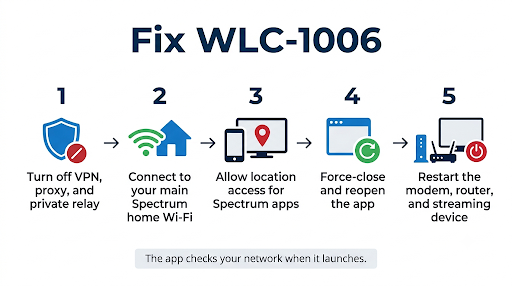
- Turn off any VPN, proxy, or private DNS on your device and router.
- Connect to your main Spectrum home Wi-Fi. Forget other saved networks if your device keeps hopping.
- Force-close the Spectrum TV app and reopen it. The app checks your network when it launches, so a simple refresh often clears the banner.
- Allow location access for the Spectrum TV app and My Spectrum app on phones and tablets.
- Sign out and sign back in. This forces a fresh account and network check. If signing back in fails, see our guide to Spectrum TV app sign-in errors.
- Power cycle your equipment. Unplug your modem and router for 60 seconds, plug the modem in first, wait for it to come online, then plug in the router.
- Restart your streaming device or TV by unplugging it for a full minute.
- Update or reinstall the Spectrum TV app. An outdated app can carry stale session data.
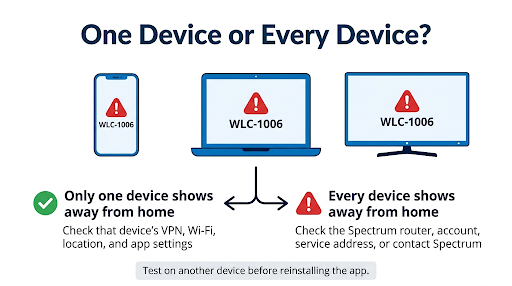
- Test on another device on the same Wi-Fi. If one device works and another doesn’t, the problem is that device’s settings, not your network.
- Contact Spectrum if every device on your Spectrum network shows WLC-1006. Ask them to confirm your modem is provisioned correctly and your account is linked to the right address.
If the app won’t load at all after these steps, or you’re seeing network-related codes alongside WLC-1006, our walkthrough on Spectrum TV app connection errors covers the deeper network fixes.
How Do You Fix “We See You’re Away From Home” on Each Device?
The core fix is the same everywhere, but the settings live in different places. Menu names can vary slightly by software version.
iPhone and iPad
- Go to Settings > Spectrum TV > Location and choose While Using the App. Turn on Precise Location.
- Repeat for the My Spectrum app.
- Go to Settings > VPN (or Settings > General > VPN & Device Management) and make sure it says Not Connected.
- Turn off Wi-Fi Assist under Settings > Cellular, at the bottom of the page.
- Swipe up to close the app, then reopen it.
Android Phones and Tablets
- Go to Settings > Apps > Spectrum TV > Permissions > Location and allow it while using the app.
- Make sure device-wide Location is on in Quick Settings.
- Check Settings > Network & internet > Private DNS and set it to Automatic or Off as a test.
- Turn off any VPN app and any “always-on VPN” option.
- Go to Settings > Apps > Spectrum TV > Storage, tap Clear cache, then reopen the app.
Roku
- Go to Settings > Network > About and confirm the connected network is your Spectrum Wi-Fi.
- Run Check connection from the same menu.
- Restart from Settings > System > Power > System restart.
- If house icons still appear, remove the Spectrum TV channel, restart the Roku, and add it back from the Streaming Store.
Apple TV
- Go to Settings > Network and confirm the Wi-Fi network, or use Ethernet if you can.
- Remove any VPN profile under Settings > General > Privacy or the VPN app itself.
- Restart from Settings > System > Restart.
- Delete and reinstall the Spectrum TV app if the issue continues.
Samsung Smart TV, Xbox, and Xumo Stream Box
- Check the network settings and confirm you’re on the Spectrum network, not a nearby hotspot.
- Unplug the TV or console for one full minute to clear its network session.
- On Samsung TVs, check the location or privacy settings and make sure location services are allowed.
- A wired Ethernet connection is the most reliable fix for smart TVs that keep dropping to the out-of-home lineup.
Web Browser (watch.spectrum.net)
- Turn off browser VPN extensions and any built-in browser VPN (Opera, Edge Secure Network, and similar).
- Disable iCloud Private Relay in Safari or try a different browser.
- Sign out, clear cookies for spectrum.net, and sign back in.
- Allow the site to use your location if the browser asks.
What Mistakes Keep the Error Coming Back?
If the message disappears and then returns later, one of these is usually behind it:
- A VPN that reconnects on its own. Many VPN apps have an auto-connect or kill-switch setting that turns them back on.
- Weak Wi-Fi in one room. The device drops to cellular in the bedroom or backyard and the app flips to away mode.
- A mesh node set up as a separate router. One room works, another doesn’t, because that node handles traffic differently.
- Leaving the app open overnight. The app may keep an old network status. Force-close it before you start watching.
- Changing the Spectrum router. After a modem or router swap, restart every streaming device so the app picks up the new connection.
Can You Watch All Spectrum Channels When You’re Actually Away From Home?
No. When you’re truly away, such as at work, a friend’s house, a hotel, or a vacation home, you only get the out-of-home lineup. That’s a licensing rule, not a bug. Workarounds that try to fake your home location go against Spectrum’s terms, and community reports show they’re unreliable anyway.
Here’s what you can do instead:
- Use the out-of-home lineup. Plenty of channels and On Demand titles still work anywhere in the U.S.
- Use individual network apps. Many channel apps, such as sports and news networks, let you sign in with your Spectrum TV credentials and stream away from home.
- Stay inside the stream limit. Out-of-home streams are capped. If you get a different error when a family member is also watching, read our guide on the Spectrum TV app maximum video streams error.
- Remember the U.S.-only rule. Spectrum states that you can’t use the Spectrum TV app outside the United States, even for out-of-home channels.
Which Other Spectrum Errors Look Similar to WLC-1006?
Several Spectrum codes show up in the same situations, so it helps to know which one you’re actually seeing.
| Error or message | What it usually means | What to try first |
| WLC-1006: We See You’re Away From Home | App thinks you’re off your home network | Turn off VPN, join home Wi-Fi, restart app |
| “Connect to In-Home WiFi” or house icon on a channel | That channel only streams on your home network | Same fixes as WLC-1006 |
| WLI-1010: Unable to Sign In | Wrong username or password | Reset your Spectrum login |
| Maximum video streams reached | Too many devices streaming at once | Stop playback on another device |
| Unable to Complete Request / Service Unavailable | Server, outage, or app session issue | Check for outages, then restart the app |
If your screen says the service is unavailable rather than that you’re away, follow our fix for Spectrum TV app “Unable to Complete Request” and service unavailable errors.
Frequently Asked Questions
Why does the Spectrum app work on cellular data but not on my home Wi-Fi?
That points to your home router or network, not the app. If the app fully fails on home Wi-Fi but loads on 5G, a third-party router’s security feature, DNS filter, or IPv6 setting is often blocking Spectrum’s servers. Connect directly to the Spectrum router or turn off router add-ons to test.
Can I watch Spectrum TV at someone else’s house?
Yes, but only the out-of-home lineup. Even if your friend has Spectrum Internet, their network is linked to their account, not yours, so you’ll still see the away from home message and limited channels.
Why do I get the away from home error on my Roku but not my phone?
The Roku is probably on a different network, a weaker mesh node, or an old network session. Check the Roku’s network name under Settings, restart it, and consider a wired connection if it’s far from the router.
Does the Spectrum TV app need Spectrum Internet to show all channels?
Yes. The full in-home lineup depends on being connected to Spectrum Internet service at your account’s address. With another internet provider, the app treats every device as away from home.
How do I change my location in the Spectrum TV app?
You can’t set a location manually. The app reads it from your network and device. If you moved, update your service address through Spectrum so your new home network is linked to your account.
Will a VPN let me watch in-home Spectrum channels while traveling?
Not reliably, and it isn’t an approved method. The app actively checks for VPN use and usually reduces your lineup when one is detected, which is why turning a VPN off fixes the error far more often than turning one on.
Final Recommendation
If you’re home and seeing “We See You’re Away From Home,” turn off any VPN, connect to your main Spectrum Wi-Fi, allow location access, and force-close the app. That fixes it for most people. If only one device is affected, focus on that device’s network and permission settings. If every device on your network shows WLC-1006, especially with your own mesh router, test with the Spectrum router directly and then call Spectrum to check your modem and account. And if you’re genuinely away, enjoy the out-of-home lineup and use individual network apps for the channels it doesn’t include.