Peacock error PPG_0017 means the Xfinity side and the Peacock side disagree about which Peacock account owns your included subscription. You’ll usually see the message “Your Xfinity account is already linked to another Peacock account,” even when you only have one Peacock account. The fix is to unlink the old connection from your Xfinity StreamStore, activate again with your primary Xfinity ID, and ask Xfinity for an entitlement reset if the loop doesn’t break.
This guide walks you through why the error shows up, the exact fixes in the right order, and what to say to support so you don’t get bounced between Xfinity and Peacock.
Quick Overview
| What you see | Most likely cause | Best fix |
| “Already linked to another Peacock account” right after a move or service transfer | Your Peacock benefit is still tied to the old Xfinity account record | Unlink in StreamStore, then ask Xfinity to reset the Peacock entitlement |
| Error after upgrading to Gig, StreamSaver, NOW TV, or a new bundle | The old offer and the new offer are both pointing at your Peacock account | Unlink and reactivate from xfinity.com/yoursubscriptions |
| Error after a paid Peacock plan ended or is still running | A paid subscription is still attached to that Peacock email | Cancel the paid plan where it’s billed, wait for it to end, then activate |
| Xfinity says “Activation required” but Peacock says “already linked” | Provisioning sync failure between the two systems | Request a manual entitlement reset from Xfinity support |
What Does Peacock Error PPG_0017 Mean?
PPG_0017 is a partner activation error. It appears when you try to activate Peacock Premium that comes with an Xfinity or NOW service, such as Xfinity Internet (Gig plans), StreamSaver, NOW StreamSaver, NOW TV, or an Xfinity Rewards perk for Diamond and Platinum members.
The full message usually reads: “Your Xfinity account is already linked to another Peacock account. Here’s How to Find It.” It’s followed by a code that starts with PPG_0017 and ends with a short string, such as PPG_0017_20f003a, PPG_0017_4f4956b, or PPG_0017_2253012.
That ending changes from person to person. Neither Xfinity nor Peacock publishes what each suffix means, so treat it as a reference number. Write it down, because support agents can use it to look up your case.
Why Does It Say “Another Peacock Account” When You Only Have One?
Because the link is stored on the account record, not just your email. When Xfinity creates a new account record for you (after a move, a transfer, or a plan change), the old record can still hold the link to your Peacock account. Peacock sees that existing link and blocks the new one. So the “other” account is often your own Peacock account, just connected to an old Xfinity record.
Why Is Peacock Error PPG_0017 Happening?
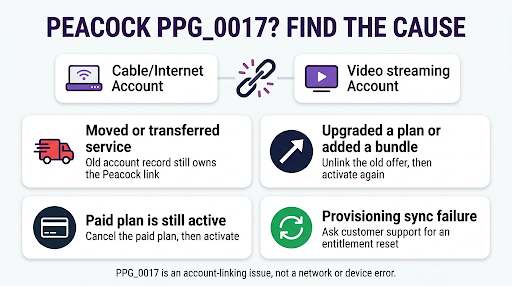
In most cases, PPG_0017 happens for one of five reasons. Knowing which one fits you saves a lot of time.
1. You Moved or Transferred Your Xfinity Service
This is the most common trigger. Xfinity customers who move and transfer service often find that Peacock stops working, then hit PPG_0017 every time they try to reactivate. The benefit at the new address can’t link because the old address still “owns” the Peacock connection.
2. The Account Holder Changed
A typical example: one person in the household closes their Xfinity account, and someone else opens a new account in their own name. The free Peacock perk comes with the new account, but the existing Peacock login is still tied to the closed one.
3. You Upgraded Your Plan or Added a Bundle
Upgrading to a Gig plan, adding StreamSaver, or switching bundles can create a fresh Peacock offer while the old one is still attached. The Xfinity dashboard shows “Activation required,” but Peacock thinks you’re already linked.
4. You Still Have a Paid Peacock Subscription
If your Peacock email has a paid plan billed by Peacock, Apple, Google, Roku, Amazon, or Xfinity itself, it can conflict with the included offer. Xfinity notes that you may need to cancel the existing plan and, for membership offers, wait until the end of the billing cycle before activating.
5. A Sync or Provisioning Failure
Sometimes nothing is wrong on your end. The entitlement simply didn’t sync between Xfinity and Peacock. Some users even see two active subscriptions “managed by Xfinity” on the Peacock side while Xfinity still says activation is needed. This kind of mismatch needs a backend fix.
How Do You Fix Peacock Error PPG_0017?
Start with the unlink and clean reactivation steps below. They solve the issue for many people in minutes. If you’re still stuck in a loop after that, skip to the support section, because more browser resets won’t help.
Fix 1: Sign Out of Peacock Everywhere and Use a Private Window
Old sessions can hijack the activation redirect. Before you do anything else:
- Sign out of Peacock on every device and browser, including your TV, phone, and streaming stick.
- Open a private or incognito window in your browser.
- Go to xfinity.com/yoursubscriptions and sign in with your primary Xfinity ID.
- Start activation from there. Sign in to Peacock only when the activation flow asks you to.
If the Peacock site itself acts strange in your browser (blank pages, spinning loaders, buttons that do nothing), work through our guide on fixing Peacock when it’s not working in a web browser before you try activation again.
Pro Tip! Try a different browser too. If you normally use Chrome, run the activation in Edge, Safari, or Firefox. It rules out extensions and saved cookies in one step.
Fix 2: Confirm You’re Using the Primary Xfinity ID
Xfinity requires the primary account holder’s Xfinity ID for Peacock activation and membership redemption. A secondary user login can see the subscriptions page but may fail during linking.
Not sure which login is primary? Sign in at xfinity.com and check the users section of your account settings. If you can’t get into the primary login at all, reset its password first. If Xfinity keeps signing you out partway through, our guide on the Xfinity sign-in loop and logout problems covers that issue in detail.
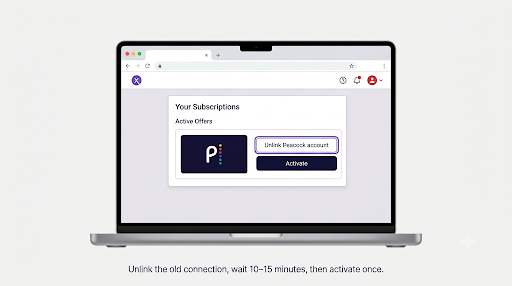
Fix 3: Unlink the Old Peacock Account in the Xfinity StreamStore
This is the official fix when Peacock is linked to the wrong email or to an old record. Here’s how:
- Go to xfinity.com/yoursubscriptions to open the StreamStore.
- Find Peacock and click Help & more info.
- Click Unlink Peacock account.
- Confirm the Peacock account you want to use. To use a different email, choose No, please use another account.
- Enter the email you want and click Continue.
- Sign in and finish activation.
Xfinity’s subscriptions page says status updates, including recently unlinked subscriptions, can take a few minutes. Wait 10 to 15 minutes before you try again so you don’t trigger the error on a half-updated record.
Important Point to be Considered! If you open your old Xfinity account (after a move) and try to unlink there, you may see “This information is unavailable at the moment.” That’s a strong sign you need a support agent to remove the link for you. Jump to Fix 7.
Fix 4: Activate Through the Right Path for Your Offer
Peacock offers from Xfinity don’t all activate the same way. Using the wrong path is a quiet cause of failed activations.
| Your offer | Where to activate |
| Peacock included with Xfinity Internet (for example, Gig plans) | xfinity.com/yoursubscriptions, then Activate next to Peacock Premium |
| Peacock not listed on your subscriptions page | xfinity.com/activate-peacock while signed in |
| StreamSaver or NOW StreamSaver | The activation email you received, or xfinity.com/yoursubscriptions |
| Diamond or Platinum Xfinity Rewards perk | xfinity.com/rewards, choose “Get Peacock Premium at no extra cost,” then “Get This Benefit” |
For the Rewards perk, Xfinity sends an activation email after you claim the benefit. It can take a few hours to arrive, so don’t keep clicking Activate in the meantime.
When you reach the Peacock step, new Peacock users create a password and click Activate. Existing Peacock users enter their current email and password and click Sign In & Activate.
Fix 5: Cancel Any Paid Peacock Plan First
If your Peacock email has a paid plan, cancel it where it’s billed:
- Billed by Peacock: Cancel on peacocktv.com under your account’s plan settings.
- Billed by Apple, Google, Roku, or Amazon: Cancel in that store’s subscription settings. Peacock can’t cancel these for you.
- Billed by Xfinity: Manage it from your Xfinity account or your Xfinity TV Box. You can also say “Manage Peacock” into an Xfinity Voice Remote.
Xfinity warns that third-party paid plans keep running until you cancel them, and overlapping periods aren’t refunded or credited. So cancel early, then activate once the paid period ends.
Pro Tip! Not sure who bills you? Sign in at peacocktv.com and open your plan details. If it says “Billed by Xfinity,” Peacock will send you back to Xfinity to make changes.
Fix 6: Try Activating With the Same Email as Your Primary Xfinity ID
Some Xfinity forum agents suggest that StreamSaver activations work best when the Peacock login email exactly matches the primary Xfinity ID email, not a secondary user or an alias. This isn’t an official rule, but it’s worth trying if your Peacock email is different and nothing else works.
Fix 7: Ask Xfinity to Reset Your Peacock Entitlement
If you’ve unlinked, used the primary ID, cleared cookies, and still land on PPG_0017, the problem is on the backend. Xfinity’s own forum staff describe this as an activation link that’s stuck and needs a manual system reset. No amount of cache clearing or modem restarts will fix that on your end.
Contact Xfinity first, not Peacock. Xfinity provides the included subscription, so it controls the entitlement. You can reach them through Xfinity Assistant (xfinity.com/xfinityassistant), chat, phone, or a direct message on the Xfinity Community Forum.
Ask for these two things by name:
- Remove the existing Peacock association from your old or current Xfinity account record.
- Reset or re-provision the Peacock entitlement so you can activate fresh.
Some Xfinity agents also recommend asking Peacock support to remove the old Xfinity tie from your Peacock login. That lets you activate the new benefit with the same email, so you keep your profiles and watch history.
What Should You Have Ready Before Contacting Support?
Have your account details and the exact error code ready. It shortens the call and helps the agent escalate faster.
- Full name on the Xfinity account
- Current service address, plus your previous address if you moved
- The Peacock account email you want to use
- The full error code, including the suffix (for example, PPG_0017_20f003a)
- Which offer you’re activating (Gig plan, StreamSaver, NOW TV, or Rewards perk)
- A screenshot of the error and of your subscriptions page showing “Activation required”
- A list of what you’ve already tried
Important Point to be Considered! Ask the agent for a ticket or case number before you hang up. Several users report being told they’d hear back in 24 hours and then waiting weeks. A case number lets the next agent pick up where the last one stopped.
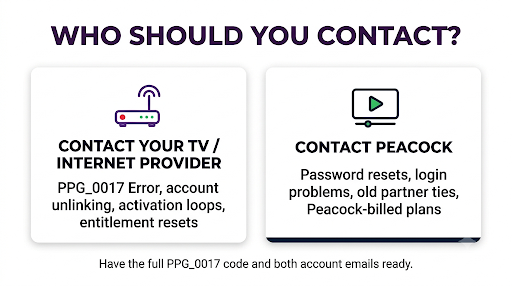
Why Do Xfinity and Peacock Keep Sending You to Each Other?
Because each company controls a different half of the link. Xfinity owns the included subscription and the entitlement. Peacock owns your login, profiles, and billing records for plans it charges directly.
Here’s a simple rule that stops the ping-pong:
- Contact Xfinity for PPG_0017, “Activation required” loops, unlinking, and entitlement resets.
- Contact Peacock for password resets, login problems, removing an old partner tie from your Peacock email, and paid plans Peacock bills directly.
Tell each agent that you know which side handles what. It sounds small, but it often gets you escalated instead of sent back to the start.
What If Peacock Activates but Still Won’t Play?
Once PPG_0017 clears, the subscription is linked. Any playback trouble after that is a separate app or device issue. Try these quick steps:
- Fully close the Peacock app and reopen it.
- Sign out of Peacock and sign back in so it picks up the new plan.
- Restart your TV or streaming device by unplugging it for about 20 seconds.
- Update the Peacock app and your device software.
- Clear the app cache or reinstall the app if it still misbehaves.
- On an X1 TV Box, say “System Refresh” into your Voice Remote so the box pulls your new entitlements.
If the app freezes, crashes, or shows “Something went wrong,” follow our step-by-step guide for when Peacock won’t load, crashes, or says something went wrong. And if you see a playback code instead, our breakdown of Peacock error OVP_00012 explains that one separately.
Common Mistakes That Keep the PPG_0017 Loop Going
- Clicking Activate over and over. Each attempt can stack on a broken record. Unlink, wait a few minutes, then try once.
- Creating a brand-new Peacock email as a workaround. Many users report the error follows them to the new email, because the block is on the Xfinity record. You’d also lose your watch history.
- Using a secondary Xfinity login. Always use the primary account holder’s ID.
- Leaving a paid plan running. Overlapping charges aren’t credited back.
- Spending hours on modem or router resets. PPG_0017 is an account linking issue, not a network problem.
- Starting activation from the Peacock site. Included offers should start from Xfinity’s StreamStore or your activation email.
Frequently Asked Questions
Is PPG_0017 a Peacock outage?
No. PPG_0017 is tied to your account link, not to Peacock’s servers. If Peacock were down, you’d see loading or playback errors across all accounts, not an “already linked” message during activation.
Will I lose my Peacock watch history if I unlink my account?
Not usually, as long as you reactivate with the same Peacock email. Your profiles and history live on the Peacock account, not on the Xfinity link. Switching to a different email is what starts you from scratch.
Can I fix PPG_0017 from the Peacock app on my TV?
Generally, no. Included Xfinity offers activate through Xfinity’s website or activation email, and unlinking lives in the Xfinity StreamStore. Use a phone or computer browser for the fix, then sign in on your TV afterward.
Does PPG_0017 happen with NOW StreamSaver too?
Yes. NOW StreamSaver includes Peacock Premium with ads, and it uses the same Xfinity activation system, so it can hit the same linking conflict. The fixes are identical.
Can I upgrade to Peacock Premium Plus with StreamSaver?
Only with NOW StreamSaver, and at the full retail price. Xfinity StreamSaver isn’t eligible for the Premium Plus upgrade. Upgrading won’t clear PPG_0017 either, so fix the link first.
How long does an Xfinity entitlement reset take?
Xfinity doesn’t publish a set timeline. Some resets work the same day, while others take longer if the case needs escalation. Ask for a case number and follow up on the Xfinity Community Forum if you don’t hear back.
Will I lose my included Peacock if I cancel Xfinity Internet?
Likely, yes. Xfinity states that customers may lose access to Peacock by canceling Xfinity Internet, since the perk depends on that service.
Final Recommendation
Don’t burn hours on cache clearing. Sign out of Peacock everywhere, open a private window, sign in with your primary Xfinity ID, and unlink Peacock from the StreamStore. Wait a few minutes and activate once from xfinity.com/yoursubscriptions.
If you still see PPG_0017, especially after a move or account change, contact Xfinity with your error code and both addresses ready. Ask them to remove the old Peacock association and reset your entitlement. That’s the fix that breaks the loop for most people.