Peacock error OVP_00012 means Peacock thinks your connection is coming from outside the area where it streams. That area is the United States and five U.S. territories. If you are sitting at home in the U.S. and still see this code, something on your device or network is making your IP address look foreign or masked, and that is almost always fixable in a few minutes.
This guide explains exactly why OVP_00012 shows up inside the U.S., how to find the real cause, and what to do when the usual fixes don’t work.
Quick Overview
- What it means: Peacock’s location check failed. It believes you are outside the U.S. or behind a VPN or proxy.
- Most common cause in the U.S.: An active VPN, proxy, privacy relay, or a VPN feature built into antivirus software.
- Other causes: An IP address that location databases place in the wrong country, a work or school network, or a stale app or browser session.
- Fastest fix: Turn off every VPN or proxy, then switch to a different network (like mobile data) to see if the error clears.
- If you are actually abroad: Peacock does not support streaming outside the U.S. and its territories, so the error is expected.
What Does Peacock Error OVP_00012 Mean?
OVP_00012 is Peacock’s region or location error. It appears when Peacock decides your connection is outside its supported streaming area. You might see it with wording like “Peacock is not yet available in your territory” or a similar region message.
Peacock checks your location mainly through your IP address. Your IP address is like a return address on every request your device sends. Peacock compares it against location databases. If the database says “not U.S.” or “known VPN server,” playback stops and you get OVP_00012.
According to Peacock’s help page on where the service is available, Peacock streams in the United States and these U.S. territories:
- Puerto Rico
- Guam
- U.S. Virgin Islands
- Northern Mariana Islands
- American Samoa
So if you are in any of those places, OVP_00012 is not supposed to happen. When it does, it is a detection problem, not a problem with your account.
Why Does OVP_00012 Happen When You Are in the U.S.?
It happens because something makes your connection look like it is not a normal U.S. home connection. Here are the real-world causes, starting with the most likely.
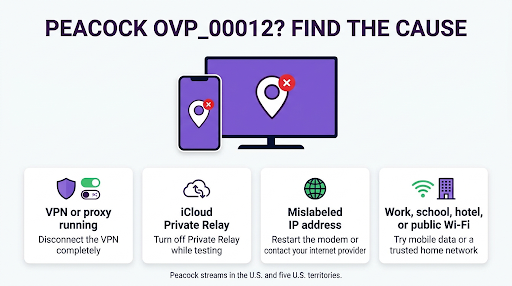
1. A VPN or Proxy Is Running (Sometimes Without You Knowing)
Peacock actively blocks traffic from known VPN and proxy servers, even U.S. ones. This means a VPN set to a New York server can still trigger the error, because Peacock recognizes the server’s IP range rather than its city.
The tricky part is that many people don’t realize a VPN is on. Common hidden sources include:
- Antivirus or security suites that bundle a VPN or “secure browsing” feature and turn it on automatically
- Browser extensions for privacy, ad blocking, or “free VPN” access
- Router-level VPNs set up by someone else in your home
- Auto-connect settings that turn a VPN on when you join public or “untrusted” Wi-Fi
2. iCloud Private Relay or Another Privacy Relay
On iPhone, iPad, and Mac, iCloud Private Relay routes Safari traffic through relay servers. It is not a traditional VPN, but streaming services can still read it as masked traffic. If you watch Peacock in Safari and get OVP_00012, Private Relay is a strong suspect.
3. Your IP Address Is Mislabeled
Sometimes your internet provider gives you an IP address that a location database has filed under the wrong country or flagged as a data center. This happens more often with:
- Newer or smaller internet providers
- Satellite internet and some fixed wireless services
- Recently reassigned IP blocks that used to belong to another company or country
- Some mobile carriers’ routing, depending on how traffic exits their network
In these cases you have done nothing wrong. The database is simply out of date.
4. Work, School, Hotel, or Public Wi-Fi
Office and campus networks often send traffic through corporate gateways or security filters. Hotels and airports may route through third-party providers. Any of these can make your connection look like a proxy to Peacock.
5. A Stale App or Browser Session
If you used a VPN earlier and then turned it off, the Peacock app or your browser may still be holding cached location data or cookies from that session. The VPN is gone, but the old signal is still there until you refresh it.
6. Wrong Date, Time, or Time Zone on Your Device
A device clock set to a foreign time zone, or set manually to the wrong time, can create playback and authentication conflicts. It is a less common cause, but it is quick to rule out.
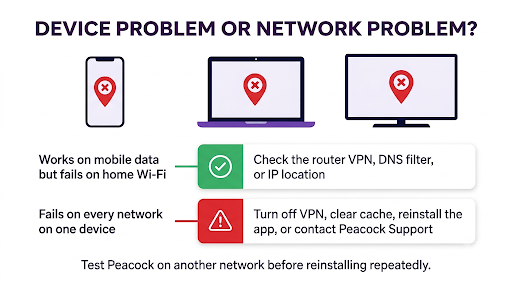
Pro Tip! If Peacock works on your phone using mobile data but fails on your home Wi-Fi, the problem is your home network (VPN on the router, or a mislabeled IP). If it fails everywhere on one device, the problem is that device (a VPN app, extension, or relay).
How Do You Fix Peacock Error OVP_00012 in the U.S.?
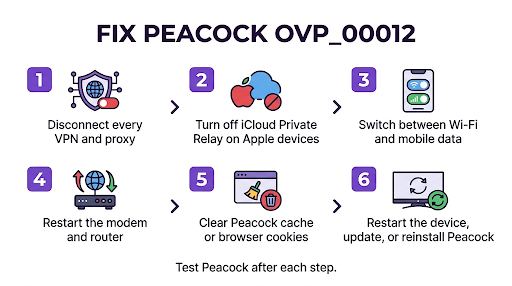
Start by removing anything that masks your connection, then refresh your network and the app. Work through these steps in order and test Peacock after each one.
Step 1: Turn Off Every VPN and Proxy
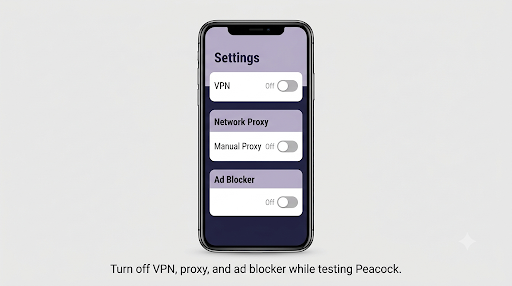
- Disconnect any VPN app on your phone, computer, or streaming device. Don’t just pause it; fully disconnect or quit it.
- Open your antivirus or security app and look for a VPN, “secure connection,” or “web shield” feature. Turn it off.
- In your browser, disable privacy and VPN extensions, then reload Peacock.
- On Windows, check Settings > Network & internet > Proxy and make sure no manual proxy is turned on.
- On Mac, check System Settings > Network for VPN profiles or proxy settings you don’t recognize.
Step 2: Turn Off iCloud Private Relay (Apple Devices)
On iPhone or iPad, go to Settings > [your name] > iCloud > Private Relay and turn it off, at least while you test Peacock. On Mac, open System Settings > [your name] > iCloud > Private Relay. If you’d rather keep it on, Apple lets you choose to keep a general location, which is less likely to confuse streaming services than a broader country-only setting.
Step 3: Switch to a Different Network
This is the single best diagnostic test.
- If you’re on Wi-Fi, switch your phone to mobile data and try Peacock.
- If you’re on mobile data, try a trusted home Wi-Fi network.
- Avoid testing on office, school, or hotel Wi-Fi, since those can cause the error on their own.
If Peacock plays on the other network, you’ve confirmed it’s a network-level issue, not your account or device.
Step 4: Restart Your Router and Modem
Unplug both your modem and router, wait about 30 seconds, and plug them back in. Some providers hand out a new IP address after a restart, which can get you off a mislabeled one. It doesn’t always work, since many home IPs stay the same for weeks, but it’s free and quick.
Step 5: Clear Peacock’s Cache or Your Browser Data
This removes leftover location data from an earlier VPN session.
- Android phones: Settings > Apps > See all apps > Peacock > Storage & cache > Clear cache.
- Fire TV: Settings > Applications > Manage Installed Applications > Peacock > Clear cache.
- iPhone and Apple TV: There’s no cache button, so delete the Peacock app and reinstall it.
- Web browsers: Clear cookies and site data for peacocktv.com, or try a private or incognito window.
If the error only shows up in your browser and the app works fine, our guide on fixing Peacock when it won’t work in a web browser covers browser-specific settings, DRM, and extension conflicts in more detail.
Step 6: Restart Your Device the Right Way
Peacock’s own device troubleshooting steps recommend fully closing the app, then unplugging your device or powering it all the way down, waiting 20 seconds, and turning it back on. A full power cycle clears temporary network settings that a quick sleep or “standby” doesn’t.
Step 7: Check Your Date, Time, and Time Zone
Set your device to update date and time automatically, and make sure the time zone matches where you actually are. Then reopen Peacock.
Step 8: Update or Reinstall the Peacock App
Install any pending Peacock app update and any system update for your TV, streaming stick, or console. If nothing changes, uninstall Peacock, restart the device, and reinstall it from your device’s app store.
Important Point to be Considered! Don’t try a “different VPN server” as a fix if you’re in the U.S. A U.S. VPN server is still a VPN server, and Peacock can still block it. Turning the VPN off completely is the reliable fix.
What Should You Do If OVP_00012 Still Won’t Go Away?
If you’ve turned off every VPN and relay and the error still appears on your home network, your IP address is probably mislabeled. Here’s how to handle that.
- Confirm the problem. Search “what is my IP location” in your browser on the affected network. If it shows a foreign country or a strange city far from you, you’ve found the cause.
- Contact your internet provider. Tell them your IP address is being geolocated outside the U.S. and ask whether they can assign a new IP or update their records with geolocation databases.
- Contact Peacock support. Go to the Peacock Help Center and use the Contact Us option. Share your device type, app version, the exact error code, and the fact that you’re in the U.S. without a VPN. That detail helps them escalate faster.
- Use another network in the meantime. Mobile data or a different trusted Wi-Fi network lets you keep watching while the IP issue gets sorted out.
Database corrections can take days, so expect some waiting even after your provider or Peacock agrees there’s a problem.
Does OVP_00012 Show Up When You Travel Outside the U.S.?
Yes. If you’re physically outside the U.S. and its territories, OVP_00012 is Peacock working as designed. Peacock’s streaming rights cover the U.S. and its territories, so a paid U.S. subscription doesn’t unlock it in Canada, Mexico, Europe, or elsewhere.
This catches a lot of travelers off guard, including people on international cruises and U.S. military families stationed overseas. Your account stays active and you’ll still be billed, but streaming won’t work until you’re back in a supported location.
Pro Tip! If you have a trip coming up, download eligible titles to your phone or tablet before you leave, if your plan includes downloads. Peacock’s download availability depends on your plan and the title, so check in the app before you travel.
Location checks like this aren’t unique to Peacock. Cable-linked apps use similar rules, and if you also stream through Comcast, our guide on watching Xfinity Stream outside your home network explains how those limits work.
How Is OVP_00012 Different From Other Peacock Errors?
OVP_00012 is about location. Other Peacock codes point to different problems, so knowing the difference saves you from trying the wrong fix.
| Error or Message | What It Usually Points To | First Thing to Try |
| OVP_00012 | Peacock thinks you’re outside its supported region | Turn off VPNs, proxies, and relays, then switch networks |
| OVP_00013 (“accessing Peacock through a VPN is restricted”) | Peacock specifically detected a VPN | Disconnect the VPN completely |
| OVP_00021 (“This title is unavailable”) | That specific show or movie isn’t available to stream right now | Pick another title or check back later |
| “Something went wrong” or app crashes | App, device, or connection glitch | Restart the app and device |
If Peacock is freezing, refusing to open, or showing a generic failure instead of a location code, see our walkthrough for when Peacock won’t load, crashes, or says “Something went wrong”. We also have a separate guide for Peacock error PPG-0017 if that code shows up instead.
What Mistakes Make OVP_00012 Harder to Fix?
- Pausing a VPN instead of disconnecting it. Some apps keep a partial tunnel open while “paused.”
- Forgetting the antivirus VPN. This is one of the most overlooked causes, especially on Windows laptops.
- Testing only on one network. Without a second network to compare, you can’t tell whether the issue is your device or your connection.
- Reinstalling over and over. If the cause is your IP address, reinstalling the app won’t change anything.
- Using “free proxy” sites or Smart DNS tools. These often make detection worse and can expose your account details to unknown services.
Frequently Asked Questions
Can OVP_00012 affect only one device in my house?
Yes. If one laptop has a VPN app, security suite, or browser extension running, only that device gets flagged. Other TVs and phones on the same Wi-Fi can stream normally. That pattern points straight at the affected device’s software.
Does OVP_00012 mean my Peacock account is banned?
No. OVP_00012 is a connection check, not an account action. Your subscription, profiles, and watch history are untouched. Once Peacock sees a normal U.S. connection, playback works again.
Why can I watch trailers but not full episodes?
Trailers and previews are often served differently from licensed full-length content, so they may play even when the location check fails. The full episode or live stream is where the region rules apply, which is why the error appears the moment you press play.
Does Peacock work in Puerto Rico, Guam, and the U.S. Virgin Islands?
Yes. Peacock lists Puerto Rico, Guam, the U.S. Virgin Islands, the Northern Mariana Islands, and American Samoa as supported. If you’re in one of them and see OVP_00012, treat it the same as a mainland U.S. case and check for VPNs or a mislabeled IP.
Is Peacock down, or is it just me?
OVP_00012 is almost always specific to your connection, not a Peacock outage. A widespread outage usually shows up as loading failures or generic errors for everyone. If friends on other networks can stream fine, the issue is on your side.
Will OVP_00012 go away on its ownWrong Date, Time, or Time Zone on Your Device
Sometimes. If your provider rotates your IP address or a location database updates, the error can disappear without you doing anything. But if a VPN or relay is the cause, it will keep coming back until you turn that feature off.
Final Recommendation
If you’re in the U.S. and see Peacock error OVP_00012, start with the two fixes that solve most cases: turn off every VPN, proxy, and privacy relay, then test Peacock on a different network. If it works on the other network, restart your router and contact your internet provider about your IP location. If it fails everywhere on one device, clear Peacock’s cache or reinstall the app and check that device’s security software. And if you’re traveling outside the U.S., the error is expected, so plan ahead with downloads where your plan allows them.