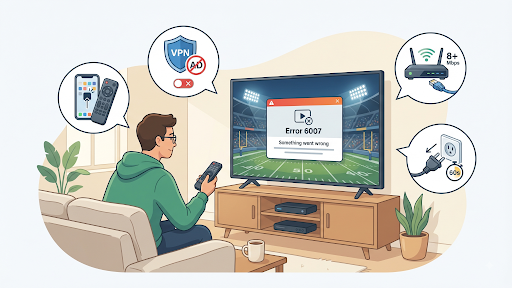
Peacock error 6007 usually means your device or browser couldn’t finish the secure playback check Peacock needs before it will play protected video. During a live game, that check runs again and again, so a weak connection, an outdated browser, a VPN, an ad blocker, or busy Peacock servers can freeze the stream and throw 6007. The fastest fix is to fully close Peacock, turn off any VPN or ad blocker, and reopen the live stream.
Below, you’ll learn what 6007 actually means, how to tell whether the problem is on your side or Peacock’s, and the exact fixes for Roku, Fire TV, Apple TV, smart TVs, phones, and web browsers, so you can get back to the game before the next play.
Quick Overview
- Force-close Peacock (or the browser tab) and reopen the live event to start a fresh playback session.
- Turn off your VPN, proxy, or ad blocker. These commonly block Peacock’s playback license check.
- Restart your router and streaming device, then make sure you’re getting at least 8 Mbps, which Peacock recommends for high-quality live events.
- On a computer, update your browser. Peacock supports Chrome 125+, Edge 125+, Firefox 127+, and Safari 17.3+ on Mac.
- Test an on-demand show. If shows play but only the live game fails, the problem is likely Peacock’s live servers, not your setup.
What Does Peacock Error 6007 Mean?
Error 6007 is a playback error tied to Peacock’s content protection system, often called DRM (digital rights management). Before any premium video plays, your device has to request a playback license from a license server. If that request fails, gets blocked, or times out, Peacock stops the video and shows 6007.
The wording you see can vary. On some web browsers, the full message reads something like “Sorry, your system configuration is not compatible with Peacock. Please check the supported devices in our Help Center (6007).” On TVs and streaming sticks, you may only see a generic “Something went wrong” screen with 6007 in the corner.
Both versions point to the same thing. Something between your device and Peacock’s license server isn’t working the way it should.
Why Does It Hit Live Sports Harder Than Movies?
Live streams are less forgiving than on-demand video. A movie can buffer a few minutes ahead, which hides small connection hiccups. A live game plays very close to the real-time broadcast, so there’s almost no cushion. On top of that, millions of fans may open the same NFL, NBA, or Premier League stream at kickoff, which puts heavy load on Peacock’s servers at the exact moment you need them.
That’s why many people report the same pattern: on-demand shows work fine, but the live game freezes and then shows 6007.
Why Is My Peacock Live Sports Stream Frozen With Error 6007?
Most of the time, one of these six causes is behind it:
| Cause | How to Spot It | Quick Fix |
| Stuck playback session | Stream froze mid-game, then showed 6007 | Force-close the app or tab and reopen |
| VPN, proxy, or ad blocker | Error appears right away, every time | Disable it and retry |
| Outdated browser or app | Message mentions “system configuration not compatible” | Update the browser or Peacock app |
| Unstable or overloaded home network | Other devices are streaming, gaming, or downloading | Pause other traffic and restart the router |
| Browser DRM or protected content turned off | Peacock fails in one browser but works in another | Turn protected content back on |
| Peacock server congestion or outage | Happens on every device, mostly at game time | Wait, check status, use the replay |
How Do You Fix Peacock Error 6007 Right Now?
Start with these steps in order. They’re listed from fastest to most involved, and the first three fix most live sports freezes.
1. Fully Close Peacock and Reopen the Live Stream
Pressing Back or Home doesn’t always end the stuck session. You need to close the app completely.
- Roku: Press Home, then reopen Peacock. If it still fails, restart the Roku from Settings > System > Power > System restart.
- Fire TV: Go to Settings > Applications > Manage Installed Applications > Peacock > Force stop.
- Apple TV: Double-press the TV button, then swipe up on Peacock to close it.
- iPhone or Android: Swipe Peacock away from your recent apps screen.
- Web browser: Close the Peacock tab, then close and reopen the browser itself.
When you reopen the game, it should load at the live point instead of the frozen frame.
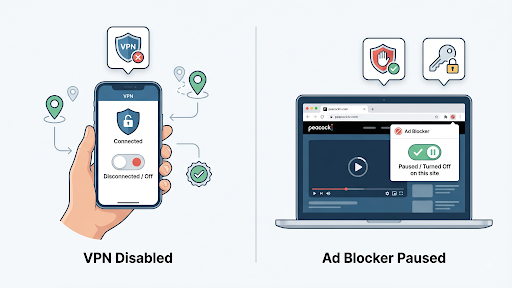
2. Turn Off Your VPN, Proxy, or Ad Blocker
Peacock checks where you’re connecting from, and a VPN or proxy can cause that check to fail. Browser ad blockers and privacy extensions can also block the scripts Peacock uses to request a playback license.
Disconnect the VPN on your phone, computer, or router. In your browser, pause your ad blocker on peacocktv.com or test in a private window, where most extensions are turned off by default.
Important Point to be Considered! Some routers and “privacy” DNS services block ad servers for the whole house. If you use a network-wide blocker like Pi-hole or a filtering DNS, pause it or whitelist Peacock, because live sports streams load ads during breaks and a blocked ad can stall the stream.
3. Restart Your Router and Streaming Device
Unplug your modem, router, and TV or streaming stick for about 60 seconds. Plug the modem in first, wait for its lights to settle, then plug in the router and your device. This clears stale network connections and temporary memory on the device.
4. Check Your Speed and Clear the Network for Game Time
Peacock says it needs at least 3 Mbps to play content and recommends at least 8 Mbps for certain high-quality live events and premium content. Run a speed test on the same device you’re watching on, not your phone across the room.
Peacock also says other devices on your network, online gaming, and large downloads or uploads can cause buffering. During a big game, pause console downloads, cloud backups, and other streams.
Fast internet doesn’t always mean a stable stream, though. If you’re seeing buffering even on a very fast plan, our guide on why Peacock keeps buffering even on gigabit internet explains Wi-Fi and device bottlenecks that speed tests often miss.
Pro Tip! If your TV or streaming box has an Ethernet port, plug it in for big games. A wired connection removes Wi-Fi interference, which is one of the most common reasons a live stream freezes while speed tests look fine.
5. Update the Peacock App and Your Device Software
An outdated app can fail the license check after Peacock updates its playback system. Check your device’s app store for a Peacock update, and install any pending system updates on your TV, streaming stick, or phone.
6. Clear the Peacock Cache or Reinstall the App
Corrupted cached data can make the same error come back every time you open the live stream.
- Fire TV and Android TV / Google TV: Settings > Applications (or Apps) > Peacock > Clear cache. If that doesn’t help, choose Clear data and sign back in.
- Android phones: Settings > Apps > Peacock > Storage > Clear cache.
- Roku, Apple TV, iPhone, and most smart TVs: There’s no simple cache button, so delete the Peacock app, restart the device, and reinstall it.
How Do You Fix Peacock Error 6007 in Chrome, Edge, Firefox, or Safari?
On a computer, error 6007 is very often a browser problem. Peacock’s supported browsers are Chrome 125+, Microsoft Edge 125+, Firefox 127+ on Windows or Mac, and Safari 17.3+ on Mac. ChromeOS on Chromebooks isn’t on that list, so a Chromebook may not play Peacock in the browser at all.
Work through these browser fixes:
- Update your browser. In Chrome, go to the three-dot menu > Help > About Google Chrome, then click Relaunch. In Firefox, go to Settings > General and check for updates. Users in Mozilla’s support forum have reported the 6007 “system configuration” message going away right after updating an old Firefox version.
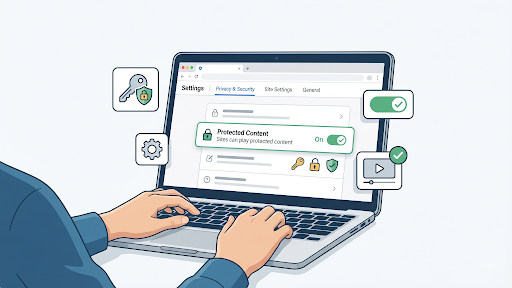
- Turn on protected content. In Chrome, go to Settings > Privacy and security > Site settings > Additional content settings > Protected content IDs, and make sure sites are allowed to play protected content. In Firefox, go to Settings > General and check “Play DRM-controlled content.”
- Try a private or incognito window. If Peacock works there, an extension or bad cookie is the problem. Clear cookies for peacocktv.com or turn off extensions one at a time.
- Switch browsers for the game. If Firefox fails, try Chrome or Edge. This is often the quickest way to get a live game back.
Important Point to be Considered! If you’re watching on an external monitor or TV connected to your laptop with HDMI, protected video may refuse to play when the cable, adapter, or display doesn’t support HDCP copy protection. Drag the browser window back to your laptop screen. If it plays there, swap the cable or adapter, or watch on a streaming device instead.
What Should You Do If Peacock Error 6007 Shows Up on Your TV or Streaming Device?
The general steps above work on every device, but each platform has its own quirks. First, confirm your device is still supported. Peacock lists Samsung smart TVs from 2017 or later, LG TVs on webOS 3.5 or later, Fire TV devices on Fire OS 6 or later, and Apple TV HD (4th generation) or newer on tvOS 18 or later. Older Roku models are also limited by model number, so check Peacock’s official supported devices list if your device is a few years old.
Roku
Restart the Roku from its settings, then remove and re-add the Peacock channel if the error repeats. If your Roku stream specifically locks up when the game comes back from a commercial, see our fix for Peacock freezing after an ad break on Roku, since that’s a common pattern during live games.
Fire TV and Firestick
Force stop the app and clear its cache from Settings > Applications. If Peacock won’t get past the loading screen after that, follow our guide for Peacock stuck on loading dots on Firestick.
Apple TV
Close Peacock from the app switcher, restart the Apple TV from Settings > System > Restart, and check for a tvOS update. If the live picture goes black but you can still hear the announcers, that’s a related but different issue covered in our article on Peacock showing a black screen with audio on Apple TV 4K.
Samsung, LG, Vizio, and Other Smart TVs
Unplug the TV for 60 seconds, which clears memory better than turning it off with the remote. Then update the TV’s software and reinstall Peacock. Samsung owners who see a different code while troubleshooting can check our guide to Peacock error VMP-4003 on Samsung TV.
Xfinity Flex, X1, and Xumo Stream Box
Restart the box by unplugging it for a minute, then reopen Peacock. If the error changes to a different code, our guide to Peacock error OVP-00009 on Xfinity Flex covers that one. If you’re trying to find the game through the channel guide and it won’t load, see Peacock live TV guide not loading on Xumo.
iPhone, iPad, and Android
Switch between Wi-Fi and cellular data to force a fresh connection, update the app, and restart the phone. If you’re on cellular, remember Peacock’s 8 Mbps recommendation for high-quality live events, which weak LTE signals in stadiums and crowded areas may not reach.
Is Peacock Error 6007 Your Problem or Peacock’s?
Run this quick test to find out where the problem is before you spend time on deep fixes:
| What You See | Most Likely Cause | What to Do |
| Live game fails, on-demand shows play fine | Peacock live servers or that specific event | Restart the stream, then wait it out |
| Fails on one device, works on your phone | That device, app, or browser | Update, clear cache, or reinstall on that device |
| Fails on every device at home, works on cellular | Your home network, VPN, or DNS blocker | Restart router, disable VPN or blockers |
| Fails everywhere, on every network | Peacock outage or account issue | Check outage reports and Peacock’s Help Center |
To check for an outage, look at third-party outage trackers like Downdetector or Peacock’s official support account on X. A sudden spike in reports right at kickoff is a strong sign the issue isn’t on your end.
If Peacock’s servers are having a bad night, the error may change. Our article on Peacock’s “Sorry, we encountered a problem” 500 error explains what server-side errors look like and how long they usually last.
Can Too Many Streams Trigger a Frozen Live Game?
Yes, it can contribute. Peacock allows up to three concurrent streams per account. If family members are watching on other TVs or someone left a stream running, starting the game can fail or a session can get kicked off mid-play.
Stop playback on devices you aren’t using, then reopen the live event. If Peacock shows a stream limit message instead of 6007, see our guide on the Peacock too many devices streaming error.
What If You Miss Part of the Game While Fixing It?
When you reopen a live event on Peacock, it normally picks up at the live point, so you won’t fall behind the real-time action once it’s working again. If you missed a key moment, many Peacock live sports events become available as replays after they end, though availability depends on the league and event rights.
One more thing to watch after a restart: on some soccer broadcasts, the audio language can switch unexpectedly when the stream reloads. If that happens, here’s how to fix Peacock Spanish audio stuck on Premier League matches.
Common Mistakes That Keep Error 6007 Coming Back
- Only pressing Back. The stuck session often survives. Force-close the app instead.
- Leaving a VPN running in the background. Many VPN apps reconnect automatically when your phone or computer wakes up.
- Testing speed on the wrong device. Your phone next to the router may get 300 Mbps while the TV in the basement gets 6.
- Ignoring the browser version. An old browser can stay on your computer for years if automatic updates were turned off.
- Reinstalling over and over during an outage. If the error appears on every device, no local fix will help until Peacock’s servers recover.
When Should You Contact Peacock Support?
Contact Peacock if error 6007 keeps appearing on more than one supported device, on more than one network, and on more than one live event, with no outage reported. At that point, it could be an account or playback rights issue only Peacock can see.
Before you reach out through the Peacock Help Center, write down the device, app or browser version, the event you were watching, the time the error appeared, and every fix you already tried. This saves you from repeating the basic steps with an agent.
Frequently Asked Questions
Is Peacock error 6007 caused by my internet provider?
Usually not directly. Your provider is only involved if your connection is unstable or a network filter blocks Peacock. If Peacock works on cellular data but fails on your home Wi-Fi, restart your router and check for parental controls or security filters in your provider’s app.
Why does Peacock error 6007 happen right at kickoff?
Kickoff and tip-off are the busiest moments for live streams because a huge number of viewers join at the same time. If your stream fails right as the game starts, wait one or two minutes, then reopen it. Joining slightly after the rush often works.
Can I get Peacock error 6007 on the free Peacock tier or with Xfinity?
Yes. The error is about playback and device checks, not your plan. Whether you pay directly, get Peacock through Xfinity, or use a bundled offer, the same fixes apply. A plan issue would show an upgrade or subscription message instead of 6007.
Does Peacock error 6007 mean my TV is too old?
Not always, but it can. If your TV or streaming device is below Peacock’s minimum supported model or software version, the license check may fail every time. Update the device first. If it’s no longer on the supported list, a newer streaming stick is the most reliable fix.
Why does Peacock work in Edge but give error 6007 in Firefox?
Each browser handles protected video in its own way. If one browser works and another doesn’t, the failing browser is likely outdated, has DRM content turned off, or has an extension blocking playback. Update it and check its DRM setting, or simply use the working browser for live events.
Will logging out and back in fix error 6007?
Sometimes. Signing out refreshes your account session, which can help when the error follows you after a password change or account update. Try it after the force-close and VPN steps, since those fix the problem more often.
Final Recommendation
If your Peacock live sports stream is frozen with error 6007 right now, force-close the app, turn off any VPN or ad blocker, and reopen the game. That fixes most cases in under a minute. If it keeps coming back, restart your router, update your app or browser, and test an on-demand show to see whether the problem is your setup or Peacock’s live servers.
Before the next big game, plug your TV into Ethernet if you can, update your browser and the Peacock app, and pause heavy downloads at home. Those three habits prevent most live stream freezes before they start.