Peacock error code OVP-00009 on Xfinity Flex usually means the stream Peacock tried to send doesn’t match what your Flex box, HDMI chain, or TV can play. In most cases, a full power cycle of the Flex box, a clean Peacock sign-in, and a direct HDMI connection to the TV clear it. If only one show or episode fails while everything else plays, the problem is usually on Peacock’s side, and the fix is to wait or report that title.
This guide walks you through every fix in the right order, explains the November 2026 Flex to Xumo update that is causing new playback problems, and shows you how to tell a box problem from a Peacock problem in under five minutes.
Quick Overview
| What you see | Most likely cause | Best first fix |
| OVP-00009 on every Peacock title on the Flex box | Stuck app session or device check failing on the box | Unplug the Flex box for 20 seconds, then sign out and back in to Peacock |
| OVP-00009 only on one show or a new episode | The title is missing a version for your device on Peacock’s servers | Try another device, then report the title to Peacock |
| OVP-00009 started after your box changed to the Xumo look | The Flex to Xumo software update or an Xi5 box that needs exchanging | Confirm the update finished and check your box model |
| OVP-00009 when the Flex box runs through a soundbar, receiver, or HDMI switch | The HDMI copy-protection handshake is failing | Plug the Flex box straight into the TV |
| Peacock works on your phone but not on Flex | Box-level issue, not your account | Power cycle, update, then contact Xfinity |
What Does Peacock Error Code OVP-00009 Mean?
OVP-00009 (also shown as OVP_00009 or OVP 00009) is a playback error that points to a device capability mismatch. Peacock checks what your device can handle before it starts a stream. If it can’t find a version of that video that fits your device, playback stops and you see the code.
Peacock has not published an official definition of OVP-00009 on its Help Center. But the same OVP error family appears on other services that run on the same technology. Comcast confirmed that Showmax was relaunched on NBCUniversal’s Peacock technology platform, and Showmax’s help center groups OVP_00009 with errors that mean you can’t access the service from your device. On the UK service NOW, viewers who got OVP_00009 saw the message “No assets for required device capabilities.”
In plain terms, that message means: “We don’t have a copy of this video that your device is allowed to play.” That can happen for two very different reasons:
- Your setup failed the check. The Flex box, its software, or the HDMI connection didn’t pass Peacock’s device or copy-protection check. This affects every title.
- The title is incomplete. Peacock is missing the right file version for that specific show or episode. This affects only that title, often a brand-new episode.
Figuring out which one you have is the fastest way to a fix.
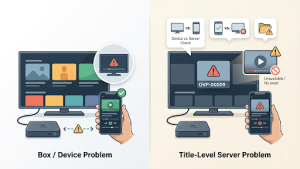
Is OVP-00009 a Problem With My Flex Box or With Peacock?
Test two things: a different title on the Flex box, and the same title on a different device. Those two checks tell you where the fault is.
| Test result | Where the problem is | Go to |
| Every title fails on Flex, but the same title plays on your phone | Your Flex box or its HDMI setup | Fixes 1 through 7 below |
| One title fails on Flex and on your phone | That title on Peacock’s servers | The “only one show” section below |
| Every title fails on every device | Your Peacock account or a wider Peacock outage | Sign-in fixes and the “contact support” section |
Pro Tip! When you test on your phone, use the Peacock app signed in to the same Peacock account as your Flex box. If you use a different account, the test won’t tell you anything useful.
Why Is Peacock Showing OVP-00009 on Xfinity Flex Right Now?
A lot of recent OVP-00009 reports on Flex line up with a big change: beginning November 17, 2026, Xfinity started upgrading Flex boxes to the Xumo Stream Box from Xfinity experience. The box gets new software, a new home screen, and in some cases needs new hardware.
Here is what Xfinity’s Flex to Xumo upgrade article confirms:
- Most Flex boxes update automatically and don’t need replacing.
- The Xi5 Flex box is the exception. It must be exchanged for a Xumo box. Check the model number on the back of your device.
- Xi6 and XiOne boxes keep 4K if you have a 4K TV and an HDMI cable that supports it.
- If the box was unplugged during the update, it retries overnight once it’s plugged back in.
- You’ll know the update is complete when a top navigation bar with Home, Guide, Library, and other options appears.
- Apps you were signed in to should stay signed in.
- XR2 and XR5 remotes need to be swapped for a compatible remote.
A box that is halfway through the update, or an Xi5 that is past its support window, is exactly the kind of device that can fail a capability check. If OVP-00009 showed up right around the time your home screen changed, start with Fix 3.
How Do You Fix Peacock Error Code OVP-00009 on Xfinity Flex?
Work through these fixes in order. Test Peacock after each one so you know which step solved it.
Fix 1: Fully Close and Reopen Peacock
Peacock’s own troubleshooting starts here. Press the Xfinity button to leave the app, open another app for a moment, then go back to Peacock and try the title again. This clears a stuck playback request without touching your settings.
Fix 2: Power Cycle the Flex Box the Right Way
A real restart clears the box’s memory and forces a fresh device check with Peacock. Peacock’s device troubleshooting steps say to unplug the device or power it down fully, wait 20 seconds, and plug it back in.
- Unplug the Flex box’s power cable from the back of the box or from the wall.
- Wait at least 20 seconds.
- Plug it back in and wait until the home screen fully loads.
- Open Peacock and play the same title.
You can also restart the box from your Xfinity account or the Xfinity app if you can’t reach the outlet.
Important Point to be Considered! Turning the TV off and on is not a restart. The Flex box stays powered when the TV is off, so the stuck session stays in place.
Fix 3: Check Your Flex Box Model and the Xumo Update
Look at the label on the back of the box for the model number.
- Xi5: This model has to be exchanged for a Xumo Stream Box. Contact Xfinity to arrange the swap. No setting change will fully fix an unsupported box.
- Xi6 or XiOne: Your box should update on its own. Check for the new top navigation bar. If you don’t see it, leave the box plugged in overnight so it can retry.
If the new layout is showing and Peacock still fails, the update itself may have left the app in a bad state. Fix 4 handles that.
Fix 4: Sign Out of Peacock and Sign Back In
A stale or broken Peacock session can make the device check fail every time. Signing in again creates a new session and a fresh device registration.
- Open Peacock on the Flex box and go to your profile or account menu.
- Sign out, or switch to a different profile and back.
- Sign in with the same email and password you use at peacocktv.com.
- Play the title again.
If you don’t know your Peacock password because the account was created on your Xfinity box, Xfinity says you can set one at peacocktv.com using the “I don’t know my password” option. Several Flex owners have also reported that creating a brand-new Peacock profile on the box stopped repeated errors, which suggests the old profile data was corrupted.
If sign-in itself throws an activation error instead of OVP-00009, our guide on the Peacock Xfinity Rewards activation loop covers that separately.
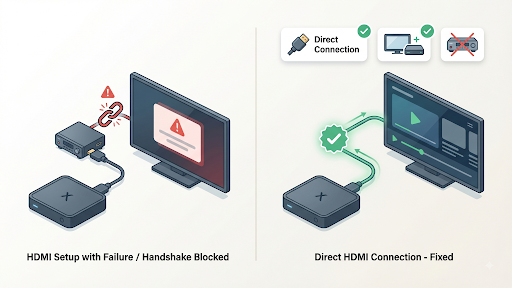
Fix 5: Connect the Flex Box Directly to the TV
Streaming apps use HDCP, a copy-protection handshake that runs across every HDMI device between the box and the screen. If one device in the chain doesn’t pass that handshake, the app may refuse to send video.
- Remove any soundbar, AV receiver, HDMI switch, or splitter from the path for this test.
- Plug the Flex box straight into an HDMI port on the TV.
- For 4K content, use a 4K-capable HDMI port and a high-speed HDMI cable.
- Try a different HDMI port and a different cable if the first combination fails.
If Peacock plays with the direct connection, the extra device was the problem. You can then connect audio through the TV’s HDMI ARC or eARC port instead of passing video through the receiver.
Pro Tip! If Peacock plays but 4K or HDR never shows up, that is a related capability issue. See our guide on Peacock not showing 4K HDR for how TV settings affect what Peacock sends.
Fix 6: Restart Your Gateway and Check Your Connection
A weak or interrupted connection can break the request Peacock makes before playback starts. Restart your Xfinity gateway or router, wait for it to come fully back online, then restart the Flex box again.
If you can, test with an Ethernet cable from the gateway to the Flex box. If the error disappears on a wired connection, your Wi-Fi is the weak link. For constant pauses instead of an error code, read our fix for Peacock buffering even on gigabit internet.
Fix 7: Clear Stored Data on the Box
Peacock’s troubleshooting includes clearing the device’s cache and data, then reinstalling the app. On Xfinity boxes, Peacock is built in, so you can’t uninstall it the way you would on a phone. Instead:
- Check the box’s Settings menu for an option to clear locally stored data, if your box has one.
- Use the troubleshooting tools in the Xfinity app or your online Xfinity account, which include a system refresh for TV equipment.
Important Point to be Considered! Clearing stored data on the box can sign you out of other streaming apps too. Have your passwords for Netflix, Disney+, and other apps ready before you do this.
What If OVP-00009 Only Happens on One Show or Episode?
If only one title fails and it fails on every device, the issue is almost always on Peacock’s side. Restarting your box won’t fix it, because the missing file isn’t on your end.
This pattern shows up a lot with brand-new episodes. NOW viewers in the UK, on the same OVP error system, reported OVP_00009 on just the newest episodes of certain shows while every other title played normally, and on more than one device at once.
What to do:
- Play a different episode of the same show. If it works, the problem is limited to that one episode.
- Try the same episode on the Peacock website or mobile app.
- Wait a few hours. Missing title versions often get fixed once Peacock re-processes the file.
- Report the exact show, season, and episode to Peacock support so it gets flagged.
If the error you see on a single title is a different code, such as OVP-00018, check our guide on Peacock error code OVP-00018, since the OVP codes don’t all mean the same thing.
Does Xfinity Flex Still Include Peacock for Free?
No, Flex by itself does not give you free Peacock Premium. Xfinity support has said that Peacock Premium is no longer included with Flex service. You can get Peacock at no extra cost only through a qualifying offer, such as certain Xfinity Internet plans or an Xfinity Rewards benefit.
This matters for OVP-00009 because some people mix up a plan problem with a playback problem. If Peacock asks you to pick a plan, or says your account needs an upgrade, that is an entitlement issue, not a device issue. Our article on Peacock saying upgrade required when you’re already subscribed walks through that fix, and the Peacock error code PPG-0022 guide covers Xfinity linking failures.
Xfinity’s Peacock app FAQs also confirm that you need Xfinity Internet (any level) to use Peacock on an Xfinity box, and that removing the box from your account ends Peacock access on that box.
What Are the Most Common Mistakes When Fixing OVP-00009?
- Only turning the TV off. The Flex box keeps running. Unplug the box itself.
- Creating a second Peacock account. A new account doesn’t fix a device error, and it can break your Xfinity link or billing.
- Leaving the receiver in the HDMI chain while testing. You can’t rule out an HDCP problem until the box is plugged straight into the TV.
- Restarting over and over for a single broken episode. If one title fails everywhere, the fix has to come from Peacock.
- Ignoring the box model. An Xi5 that needs exchanging will keep causing trouble after the Xumo upgrade.
When Should You Contact Xfinity or Peacock Support?
Contact Xfinity when the problem is the box, and Peacock when the problem is the title or your Peacock account.
| Contact Xfinity if | Contact Peacock if |
| Peacock fails on the Flex box but works on your phone after all fixes | One show or episode fails on every device |
| You have an Xi5 box that needs exchanging | Your Peacock account shows the wrong plan |
| The Xumo update never finished | You can’t sign in at peacocktv.com |
| Other apps on the Flex box also fail or crash | OVP-00009 appears on every device you own |
Before you reach out, write down the exact code, the show and episode, your Flex box model, and what you already tried. You can also type the code into the search on Xfinity’s error code lookup page to see if Xfinity has posted a fix.
Frequently Asked Questions
Is OVP_00009 the same error as OVP-00009?
Yes. Peacock and related apps sometimes display the code with an underscore (OVP_00009), sometimes with a dash (OVP-00009), and some people search for it as OVP 00009. They all refer to the same playback error.
Why does Peacock work on my phone but show OVP-00009 on my Flex box?
Because the phone and the Flex box go through separate device checks. Your account and the title are fine. The Flex box, its software update status, or the HDMI connection to your TV is failing the check, so focus on the box-side fixes.
Will a VPN cause OVP-00009 on Peacock?
A VPN usually triggers a location error rather than OVP-00009, because Peacock is only available in the U.S. and select U.S. territories. Still, if you run a VPN on your router, turn it off while testing so it doesn’t add a second problem.
Can I fix OVP-00009 by switching to the Xumo Stream Box?
If you have an Xi5 Flex box, yes, the exchange is the fix Xfinity recommends. Owners of newer Flex models usually don’t need a new box, since the Xumo software arrives as an update. If you have Xumo now and the live guide is the problem, see our fix for the Peacock live TV guide not loading on Xumo.
Does OVP-00009 mean my Peacock account is banned or limited?
No. OVP-00009 is about device and content capability, not your account standing. If Peacock is blocking you because too many people are watching at once, you’ll see a separate message, which we cover in our guide to the Peacock too many devices streaming error.
How long does a Peacock-side OVP-00009 issue usually last?
There’s no official timeline. Reports from viewers on the shared OVP system describe it as short-lived when it’s tied to specific new episodes. If a title still fails after a day, report it to Peacock with the exact episode details.
Final Recommendation
Start by testing one other title on the Flex box and the same title on your phone. If every title fails on Flex only, unplug the box for 20 seconds, sign back in to Peacock, and connect the box straight to the TV. If your home screen just changed to the Xumo look, confirm the update finished and check that your box isn’t an Xi5. And if only one episode fails everywhere, skip the resets, report it to Peacock, and come back to it later.