Peacock error code VMP-4003 on a Samsung Smart TV means the video player could not start or keep playing your stream. In most cases the cause is on the TV side: a stale playback session, corrupted app data, a network block, or a Samsung software glitch. A full power cycle, followed by clearing the Peacock app’s cache and data, fixes it for most people.
This guide walks you through every fix in the right order, from the 2-minute basics to the deeper Samsung resets most guides skip. You will also learn how to tell whether the problem is your TV, your network, or Peacock itself.
Quick Overview
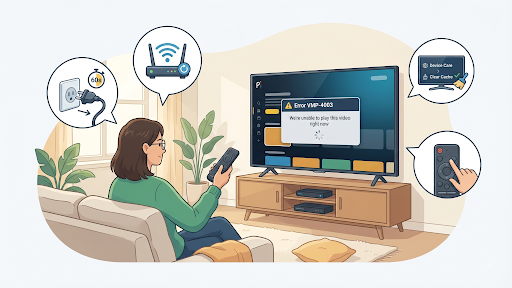
- Cold boot the TV: Unplug your Samsung TV from the wall (not just the remote), wait at least 20 to 60 seconds, then plug it back in.
- Restart your router and modem at the same time.
- Clear Peacock’s cache: Settings > Support > Device Care > Manage Storage > Peacock > View Details > Clear Cache. Use Clear Data if the error stays.
- Turn off any VPN, proxy, or smart DNS on your TV or router.
- Stop extra streams. Peacock allows up to three at once per account.
- Update the TV software and reinstall Peacock.
- Reset Smart Hub if nothing else works, then contact Peacock support.
What Does Peacock Error Code VMP-4003 Mean?
VMP-4003 is a playback error. It shows up when the Peacock app on your TV fails to load or continue the video stream, even though the app itself opens and menus work fine.
Peacock has not published an official definition for VMP-4003 in its Help Center. Based on when it appears, it behaves like other video player and license failures: the app asks Peacock’s servers for the video and the protected playback license, and something in that handoff breaks. That’s why you can usually browse titles, see artwork, and sometimes even watch an ad, but the actual show or movie refuses to start.
Important Point to be Considered! Because there is no official code sheet, be careful with any site that claims VMP-4003 has one single exact cause. The fixes below are ordered from most likely to least likely so you are not guessing.
Why Does Peacock Show VMP-4003 on Samsung TVs?
The most common triggers are temporary playback data, network filtering, and software mismatches between the Peacock app and Samsung’s Tizen OS. Here’s what usually sits behind the error:
- A stuck playback session: The TV was put to sleep instead of fully restarted, so old session data never cleared.
- Corrupted app cache or data inside the Peacock app.
- VPN, proxy, or smart DNS: Peacock is a U.S. service and blocks connections it can’t verify.
- Too many active streams on the same account.
- Outdated Samsung firmware or an outdated Peacock app.
- A Samsung software update bug: On Samsung’s own community forums, owners of models like the QN90A, QN90C, and S90C have reported Peacock, Hulu, Disney+, and Paramount+ failing at the same time after a TV update. Ads play, then the main video goes black or throws an error.
- An unsupported or older model: Peacock lists Samsung Smart TVs from 2017 or later as supported.
When Does the Error Appear? Use This to Find the Cause Faster
Where VMP-4003 shows up tells you a lot. Match your situation to the table, then jump to the fix that fits.
| When you see VMP-4003 | Most likely cause | Start with |
| Right when you press play on any title | Stale session or corrupted app data | Fix 1 and Fix 2 |
| After an ad finishes, before the show starts | Playback license handoff failing, often after a Samsung update | Fix 2, Fix 5, then Fix 6 |
| Mid-stream after a few minutes | Network drop, weak Wi-Fi, or too many streams | Fix 3 and Fix 4 |
| Only on live sports or live channels | Location check or live stream limits | Fix 3 |
| Only on this Samsung TV, works on phone and other TVs | Samsung app or firmware issue, not your account | Fix 5, Fix 6, then Fix 7 |
| On every device in the house | Network, VPN on the router, or a Peacock outage | Fix 3, then check Peacock support |
How Do You Fix Peacock Error VMP-4003 on a Samsung Smart TV?
Work through these fixes in order and test a title after each one. Most people never get past Fix 2.
Fix 1: Cold Boot Your Samsung TV and Restart Your Router
A cold boot fully clears the TV’s memory, which a normal “off” with the remote does not do. Samsung TVs go into a standby mode when you press power, so the same broken playback session can survive for days.
- Close the Peacock app.
- Unplug the Samsung TV from the wall outlet.
- Unplug your modem and router too.
- Wait at least 20 seconds. A full 60 seconds is better.
- Plug in the modem first, then the router. Wait until the internet light is solid.
- Plug the TV back in, open Peacock, and try the same title.
Pro Tip! If you can’t reach the outlet, press and hold the power button on your Samsung remote until the TV turns off and the Samsung logo appears again. That forces a restart instead of standby.
Fix 2: Clear the Peacock App Cache and Data
Clearing cache removes temporary files that commonly break playback. Clearing data goes further and resets the app, so you will need to sign back in.
On 2020 and newer Samsung TVs:
- Press Home and open Settings (on some models, go to All Settings).
- Go to Support > Device Care.
- Select Manage Storage.
- Highlight Peacock and choose View Details.
- Select Clear Cache, then test the app.
- Still seeing VMP-4003? Go back and select Clear Data, then sign in again.
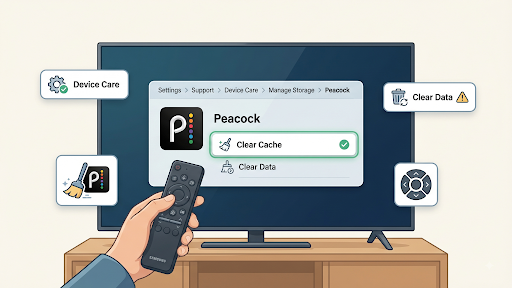
On 2019 and some older models, the option lives under Settings > Support > Self Diagnosis > TV Device Manager. Samsung’s guide on using Device Care on a Samsung Smart TV shows the menus with screenshots.
Important Point to be Considered! Keep your Peacock email and password handy before you clear data. Many people get stuck at the sign-in screen afterward and think the fix failed.
Fix 3: Turn Off VPN, Proxy, or Smart DNS
Peacock blocks VPNs and location-masking services, and that can stop playback with a VMP error instead of a clear “VPN detected” message.
- Turn off any VPN app or VPN setting on your router.
- If you set a custom or “smart” DNS on the TV, change it back to automatic. On most Samsung TVs this is under Settings > General > Network > Network Status > IP Settings > DNS Setting. Newer models may list Network under Connection instead.
- Remember that Peacock streaming is meant for the United States. If you are traveling outside the U.S., VMP-4003 and other playback errors are more likely.
If live sports are where the error hits, our guide on Peacock error 6007 during live sports covers live-only fixes that overlap with this one.
Fix 4: Check Your Stream Count and Internet Connection
Peacock allows a maximum of three simultaneous streams per account. A fourth device can trigger playback failures, and a crashed session on another device can still count toward the limit for a while.
- Stop playback on other phones, tablets, and TVs using your account.
- Peacock notes you may need to wait up to 10 minutes after hitting the limit before you can watch again. Its simultaneous streams help article explains how the limit works.
- If the TV is far from the router, try a wired Ethernet cable. It’s the quickest way to rule out weak Wi-Fi causing mid-stream drops.
- Run a speed test on a phone next to the TV. If your speed drops sharply at night, congestion may be the real cause.
If you have also seen a separate “too many devices” message, our walkthrough on fixing the Peacock too many devices streaming error shows how to free up a slot.
Fix 5: Update Samsung TV Software and Reinstall Peacock
An outdated Peacock app or old TV firmware can break the playback process the app depends on. Update both.
Update the TV:
- Go to Settings > Support > Software Update (or Settings > All Settings > Support > Software Update on newer models).
- Select Update Now.
- Keep the TV on and connected until it finishes.
- Turn on Auto Update so future fixes install on their own.
Reinstall Peacock:
- Go to Apps on the Home screen.
- Open the Settings (gear) icon in the top right.
- Select Peacock, then choose Delete. Some models show Reinstall instead.
- Cold boot the TV (Fix 1), then search for Peacock in Apps and install it again.
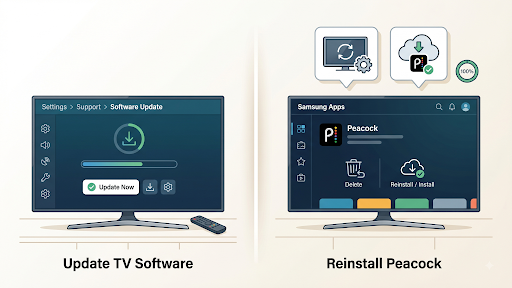
Pro Tip! Always cold boot between deleting and reinstalling. Reinstalling right away can pull old data back in from the TV’s memory.
Fix 6: Reset Smart Hub on Your Samsung TV
Resetting Smart Hub clears every app and account on the TV’s app layer, without a full factory reset. It’s the strongest fix for VMP-4003 when the error started after a Samsung software update.
- Go to Settings > Support > Device Care > Self Diagnosis. On older models, go to Settings > Support > Self Diagnosis.
- Select Reset Smart Hub.
- Enter your TV PIN. The default is 0000 unless you changed it.
- When it finishes, reinstall Peacock and sign in.
Important Point to be Considered! This signs you out of all apps, including Netflix, YouTube, and Prime Video. Make sure you know those passwords before you start.
Fix 7: Reset the Network or Factory Reset the TV
Use these only when everything above has failed.
- Reset Network: Go to Settings > General > Network > Reset Network (on newer models, look under Connection > Network). Reconnect to Wi-Fi afterward.
- Factory reset: Go to Settings > General > Reset and enter your PIN. This erases all settings, apps, and accounts, so treat it as the last step before contacting support.
What If VMP-4003 Only Happens on Samsung and Peacock Works Everywhere Else?
If Peacock plays fine on your phone, laptop, or another TV, your account and subscription are fine. The problem is on this Samsung TV, usually its app or firmware.
Here is what helps in that situation:
- Test other apps. If Hulu, Disney+, or Paramount+ also fail on this TV, it points strongly to a Samsung software issue rather than Peacock. Several Samsung Neo QLED and OLED owners have reported exactly this pattern on Samsung’s community forums.
- Report it to Samsung. Note your model code (Settings > Support > About This TV) and software version. Samsung moderators often ask for these to escalate app problems.
- Use a workaround while you wait. Plug in a supported streaming stick, or cast from your phone if your setup allows it. If you go through a soundbar or AV receiver with an external device, a loose HDMI handshake can cause its own playback issues, so connect the stick straight to the TV first.
If your Samsung picture looks wrong after the error clears, our guide on Peacock HDR looking too dark or washed out on Samsung TV covers the picture settings that matter.
Is Your Samsung TV Model Supported by Peacock?
Peacock supports Samsung Smart TVs from 2017 or later. If your TV is older, the app may not appear or may fail to play video even if it was installed before.
To check your model year:
- Go to Settings > Support > About This TV.
- Note the model code. The letter after the screen size usually indicates the year on recent models.
- Compare it with Peacock’s supported devices list.
If your TV is not supported, a streaming stick is the most reliable fix. No reset will make the built-in app work long term.
Common Mistakes That Keep VMP-4003 Coming Back
- Turning the TV off with the remote and calling it a restart. That’s standby, not a reboot.
- Clearing cache but skipping Clear Data when the error persists.
- Leaving a VPN on at the router level after turning it off on the TV.
- Reinstalling without a cold boot in between.
- Factory resetting first. It takes the longest and often isn’t needed.
- Assuming your subscription is the problem. If Peacock works on another device, it isn’t.
When Should You Contact Peacock Support?
Contact Peacock support if VMP-4003 shows up on every device, or if it keeps returning on your Samsung TV after a Smart Hub reset. Have these ready so the agent doesn’t send you back to step one:
- The full error code (VMP-4003) and a photo of the screen
- Your Samsung model code and software version
- When the error appears (on play, after ads, or mid-stream)
- Every fix you have already tried
Peacock’s own device troubleshooting steps match the first fixes in this guide, so mention that you have completed them.
Seeing a different code on another visit? Our guides to Peacock error code OVP-00018 and the Peacock “Sorry, we encountered a problem” 500 error cover the other playback and server errors Samsung owners run into.
FAQs
Why does Peacock play ads but show VMP-4003 when the show starts?
The ad and the show are delivered differently. Ads can play without the full protected playback license, while the actual episode needs it. When the license or video handoff fails, the ad finishes and the show errors out. A Clear Data reset or Smart Hub reset usually fixes this pattern.
Is VMP-4003 a problem with my Peacock subscription?
Usually not. If your plan had lapsed or did not include a title, Peacock typically shows an upgrade or sign-up message instead of a VMP code. If you are paying but still see upgrade prompts, our guide on Peacock saying upgrade required when you are already subscribed walks through that separate issue.
Can a Samsung software update cause Peacock error VMP-4003?
Yes, it can. Samsung forum users have reported several streaming apps failing together right after a TV update. Check for a newer update first, since Samsung often patches these, then reset Smart Hub if the error remains.
Does VMP-4003 happen on The Frame, Neo QLED, and Crystal UHD models?
It can appear on any Samsung Smart TV running the Peacock app, including The Frame, Neo QLED, OLED, and Crystal UHD lines. The fixes are the same, though menu names can differ slightly by model year.
Will switching from Wi-Fi to Ethernet fix VMP-4003?
It helps when the error appears mid-stream or during busy evening hours. It won’t fix errors caused by corrupted app data or a firmware bug, which is why the cache and Smart Hub fixes come first for errors that show up the moment you press play.
How long should I wait before trying again after VMP-4003?
If the error was triggered by too many streams or a crashed session, wait up to 10 minutes before retrying. For other causes, a retry right after a cold boot is fine.
Final Recommendation
Start simple. Cold boot your Samsung TV and router, then clear Peacock’s cache and data. That combination solves VMP-4003 for most people in under 10 minutes. If the error survives, update the TV, reinstall Peacock, and reset Smart Hub. And if Peacock works on every device except your Samsung TV, stop resetting and report your model and software version to Samsung, using a streaming stick in the meantime so you don’t miss your shows.