Most Spectrum TV App connection errors come from one of four things: a weak or interrupted internet connection, the app not recognizing your home Spectrum network, a stuck app session, or a problem on Spectrum’s side. Restart the app, power cycle your modem and router, and confirm you’re on your own Spectrum Wi-Fi with no VPN running. That clears the majority of connection codes within a few minutes.
If the error keeps coming back, the code itself tells you a lot. Below you’ll find what the common codes mean, how to read the letters at the start of each code, device-by-device fixes for Roku, Fire TV, Samsung, LG, Apple TV, Google TV, phones, Xbox, and browsers, and how to tell when it’s an outage you simply have to wait out.
Quick Overview
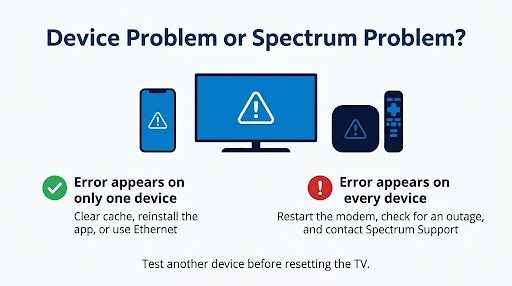
- Check for an outage first. If the app fails on every device at once, Spectrum’s servers may be down.
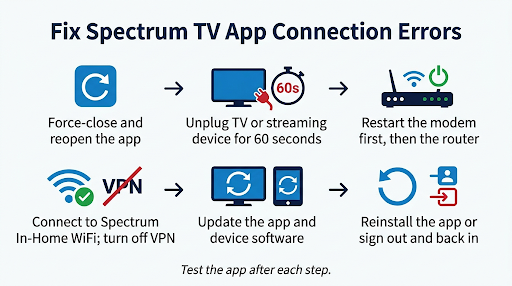
- Force close and reopen the Spectrum TV App.
- Restart your streaming device or TV. Unplug it for 60 seconds.
- Power cycle your modem and router. Unplug both for 30 to 60 seconds, plug in the modem first, wait for steady lights, then plug in the router.
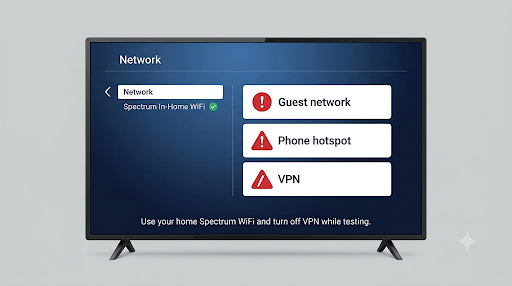
- Confirm you’re on your home Spectrum Wi-Fi. Turn off any VPN, proxy, or custom DNS.
- Update the app and your device software. If that fails, uninstall and reinstall the app.
- Sign out and sign back in to refresh your account session.
- Contact Spectrum if the same code appears after all of the above.
What Are Spectrum TV App Connection Errors?
A connection error means the Spectrum TV App couldn’t reach Spectrum’s servers, couldn’t confirm your account, or couldn’t verify that you’re on your home Spectrum Internet network. The app then shows a message such as “Unable to Complete Request,” “Service Unavailable,” “Check Your Connection,” or a reference code like RLP-999 or SCF-1003.
These errors are different from a frozen picture on a cable box. The app streams over your internet connection, so anything that disrupts that path (your Wi-Fi, your router settings, your device, or Spectrum’s streaming platform) can trigger a code.
Here’s the part many guides skip. A connection error does not always mean your internet is broken. Netflix and YouTube can work perfectly while the Spectrum TV App fails. That happens because Spectrum also checks your network location and account authorization, and those checks can fail even on a fast connection.
How Do You Read a Spectrum TV App Error Code?
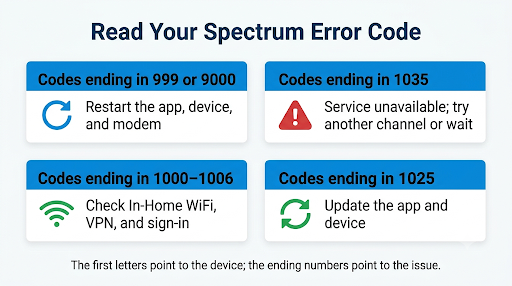
The letters at the start of a Spectrum reference code usually point to the device or platform that’s showing the error. Spectrum doesn’t publish this as a formal rule, but the pattern is consistent across its error lists and user reports.
| Code starts with | Usually means | Example |
| R | Roku | RLP-999, RGE-1001, RLC-1000 |
| S | Samsung Smart TV | SCF-1003, SLC-1000, SLP-1002 |
| I | iPhone or iPad (iOS) | ILP-9000, IFE-1002 |
| D | Android phones and tablets | DLC-1002, DGE-1001 |
| A | Apple TV | AFE-1004 |
| FT | Amazon Fire TV | FTTLP-999 |
| W | Web browser (SpectrumTV.net) | WLC-1006, WLI-1027 |
The middle letters and numbers describe the type of problem. Codes ending in 999 or 9000 tend to be broad “something went wrong” errors. Codes in the 1000 range often relate to network detection, playback, or sign-in. So DLC-1002 on Android and RLC-1002 on Roku are likely the same underlying issue showing up on different devices.
Why does this matter? If you see an R code on your Roku but your iPhone works fine on the same Wi-Fi, the problem is almost certainly the Roku or its app, not your internet.
What Do the Most Common Spectrum TV App Connection Error Codes Mean?
The table below covers the connection-related codes people search for most. Fixes come from Spectrum’s published guidance where available, and from repeated, confirmed solutions in the Spectrum and Roku communities.
| Error code | What it means | What to do first |
| SCF-1003 | The Samsung TV app can’t connect | Check your internet, restart the app, and confirm you’re on your in-home Wi-Fi |
| SLC-1000 | The Samsung TV isn’t on Spectrum Internet | Connect the TV to your home Spectrum network and relaunch the app |
| SCH-1002 | Temporary service issue | Wait a few minutes, restart the app, and try again |
| SLP-1002 / SLP-1035 | The selected channel isn’t available right now | Try another channel, then retry later |
| RLP-999 | General Roku streaming failure | Restart the router, remove and re-add the Spectrum channel, restart the Roku |
| RLP-1003 / RLC-1000 | Network or slow connection problem on Roku | Power cycle the modem, router, and Roku; move closer to the router or use Ethernet |
| RLP-1035 | Unable to play; seen widely during outages | Check for an outage before troubleshooting |
| RGE-1001 | Service unavailable | Confirm you’re on in-home Wi-Fi, restart the Spectrum channel, retry |
| DLC-1002 / DGE-1001 | Android app can’t reach the server or verify your connection | Check your connection, then reinstall the app |
| IFE-1002 | VPN detected on iPhone or iPad | Turn off the VPN completely and reopen the app |
| ILP-9000 / AFE-1004 | iOS or Apple TV can’t complete the connection | Restart the router; ask Spectrum about network routing if it persists |
| STLP-999 | Broad app or server connection error | Restart the app and device, then reinstall |
| WLC-1006 | The app thinks you’re away from home | Connect to your home Spectrum Wi-Fi and restart the app |
| WLI-1027 | Automatic sign-in was denied | Choose manual sign-in and enter your Spectrum username and password |
You can check the full, current list on Spectrum’s own Spectrum TV App error code troubleshooting page, which Spectrum updates as codes change.
Why Does the Spectrum TV App Keep Saying It Can’t Connect?
The app usually fails to connect for one of these reasons:
- Weak or unstable Wi-Fi. Your TV or streaming stick may be far from the router or on a crowded 2.4 GHz band.
- The app doesn’t recognize your home network. Spectrum limits many live channels to your in-home Spectrum Internet connection. If it can’t verify that, channels gray out or you get an “away from home” message.
- A VPN, proxy, or custom DNS. These change how your traffic looks to Spectrum. The iOS app can block playback outright with a “Disable VPN to Continue” message.
- A third-party router or mesh system. Some mesh Wi-Fi setups, such as certain Orbi configurations, have caused the app to fail at home while it worked fine on cellular data.
- An outdated app or device firmware. Older versions can lose compatibility with Spectrum’s servers.
- Corrupted app data or a stuck session. Reinstalling or signing out clears it.
- A Spectrum outage. Nothing on your end will fix this one.
A quick way to narrow it down: test the app on your phone using cellular data. If it works on cellular but not on your Wi-Fi, the problem is your home network setup. If it fails everywhere, it’s likely your account or a Spectrum outage.
How Do You Know If the Spectrum TV App Is Down?
If the app fails on every device in your home, and other streaming apps work normally, there’s a good chance Spectrum is having a service problem.
Check these before you start resetting things:
- Sign in to your Spectrum account online or in the My Spectrum app and look for outage alerts in your area.
- Check an outage tracker like Downdetector to see whether other users are reporting problems right now.
- Look at Spectrum’s social accounts for service updates.
A real example shows why this step matters. On the evening of August 3, 2026, thousands of Spectrum TV App users across several states saw the RLP-1035 error. Downdetector logged more than 5,000 reports at the peak, and the companion My Spectrum app was affected too. Charter acknowledged the problem, and service was back to normal by about 10 p.m. EDT. Anyone who factory reset their router that night lost their settings for nothing.
If you see “Unable to Complete Request” or “Service Unavailable” in particular, our guide to the Spectrum TV App “Unable to Complete Request” and Service Unavailable error walks through that specific message in more detail.
How Do You Fix Spectrum TV App Connection Errors Step by Step?
Work through these fixes in order. They go from fastest to most involved, so most people won’t need to reach the end.
1. Force Close and Reopen the App
Don’t just press Back or Home. That leaves the app running in the background with the same broken session. Fully close it from your device’s app switcher or app settings, then reopen it.
2. Restart Your TV or Streaming Device
Turn the device off, unplug it from power for 60 seconds, and plug it back in. A real power cycle clears temporary memory in a way the remote’s power button often doesn’t.
3. Power Cycle Your Modem and Router
- Unplug the modem and router from power.
- Wait 30 to 60 seconds.
- Plug in the modem first and wait until its lights are steady.
- Plug in the router and give it a minute or two to fully connect.
- Reopen the Spectrum TV App.
You can also restart Spectrum equipment remotely. In your Spectrum account, if you see a “Connection Issue” status next to your equipment, select Troubleshoot, then Restart Equipment.
4. Confirm You’re on Your Home Spectrum Network
Open your device’s network settings and check the Wi-Fi name. It’s easy to be connected to a neighbor’s network, a guest network, or a range extender that routes traffic oddly. If your router offers both bands, try the 5 GHz band for a faster, less crowded signal. For TVs and streaming boxes, a wired Ethernet connection is the most reliable option.
5. Turn Off VPNs, Proxies, and Custom DNS
Disable any VPN app on your phone, tablet, or computer, and check your router for VPN or “smart DNS” features. If you changed your device’s DNS to something like a public DNS service, switch it back to automatic. These settings can make the app think you’re not on Spectrum’s network.
6. Update the App and Your Device Software
Install any pending update for the Spectrum TV App, then check for a system update on your TV, streaming device, or phone. Outdated versions are a common cause of codes like RLP-1025 and broad 999 errors.
7. Uninstall and Reinstall the Spectrum TV App
Reinstalling clears corrupted data and cached settings. On streaming devices, restart the device after uninstalling and before reinstalling. This clears the device’s memory so the fresh install doesn’t pick up leftover data. It’s a small step that Roku community experts specifically recommend, and many people skip it.
8. Sign Out and Sign Back In
Signing out resets your account session and forces a fresh check of your subscription and network. If automatic sign-in keeps failing, choose manual sign-in and type your Spectrum username and password. For password, username, or sign-in code problems, see our breakdown of Spectrum TV App sign-in errors and how to fix them.
9. Contact Spectrum Support
If the same code keeps appearing after all of this, contact Spectrum. They can check your account, your modem’s signal, and whether there’s a network routing issue that only they can fix. Spectrum lists 833-949-0036 as its 24/7 customer service number, and you can also use chat through your Spectrum account.
Why Does Spectrum Say I’m Away From Home When I’m Home?
The app shows an “away from home” message, often code WLC-1006, when it can’t confirm your device is on your Spectrum Internet connection. It then limits you to the smaller out-of-home channel lineup, and channels you normally watch appear grayed out.
At home, the usual causes are a VPN, being on the wrong Wi-Fi network, location permission turned off for the app, or a third-party router or mesh system. Many users in the Spectrum subreddit describe the app graying out channels even when they’re clearly connected to home internet.
Quick fixes:
- Turn on location permission for the Spectrum TV App on your phone or streaming device.
- Disconnect from any VPN and reconnect to your home Wi-Fi.
- Restart your router so it refreshes its connection to Spectrum.
- Connect directly to the Spectrum router instead of a mesh node or extender to test.
For a full device-by-device walkthrough, read our guide on fixing “We See You’re Away From Home” on the Spectrum TV App.
How Do You Fix Spectrum TV App Connection Errors on Each Device?
The general steps above work everywhere, but each device has its own menus and quirks.
Spectrum TV App Not Working on Roku
Roku codes usually start with R, such as RLP-999, RLP-1003, RLP-1006, RLC-1000, and RGE-1001.
- Press Home on your Roku remote to exit the Spectrum channel, then reopen it.
- Restart the Roku from Settings > System > Power > System restart.
- Run Settings > Network > Check connection to confirm signal strength.
- Remove the Spectrum channel: highlight it on the home screen, press the * button, and choose Remove channel.
- Restart the Roku again, then add the Spectrum TV channel back from the Channel Store.
One Roku user fixed a stubborn RLP-999 by restarting the router, restarting the main Spectrum box, and then removing and re-adding the channel. If only one of several Roku TVs shows an error, the problem is that specific device, not your account.
Spectrum TV App Not Working on Fire TV or Firestick
A lot of older articles still say the Spectrum TV App isn’t available on Fire TV. That’s out of date. Spectrum launched its app on Amazon Fire TV devices on April 15, 2026, for devices running Fire OS 6 or later or Vega OS, according to Charter’s official Fire TV announcement.
- Make sure you installed the app from the official Amazon Appstore, not a sideloaded APK file.
- Update your Fire TV from Settings > My Fire TV > About > Check for Updates.
- Clear the app’s cache from Settings > Applications > Manage Installed Applications > Spectrum TV.
- Check that location permission is allowed for the app in the same menu.
- If errors like FTTLP-999 continue, uninstall the app, restart the Fire TV, and reinstall it.
If you can’t find the app in the Appstore at all, your Fire TV model may be too old to be supported.
Spectrum TV App Not Working on Samsung Smart TV
Samsung codes start with S, including SCF-1003, SLC-1000, and SCH-1002.
- Confirm the TV is on your home Spectrum Wi-Fi under Settings > General > Network > Network Status.
- Unplug the TV from the wall for 60 seconds. Turning it off with the remote often only puts it in standby.
- Update the TV software from Settings > Support > Software Update.
- Reinstall the app: go to Apps, open settings, select Spectrum TV, choose Delete, then download it again from the Samsung app store.
Menu names vary by model year. If you changed your Samsung TV’s DNS settings manually at some point, set them back to automatic, since custom DNS can send the app to the wrong servers.
Spectrum TV App Not Working on LG or VIZIO Smart TV
Spectrum added its app to LG and VIZIO smart TVs in 2025. On VIZIO it launches from the home screen, and on LG you download it from the LG Content Store.
- Update your TV’s firmware first. Older LG models may not support the app.
- On LG, delete and reinstall the app from the Content Store if it won’t connect.
- On VIZIO, restart the TV by unplugging it, since the app is built into the home screen.
Spectrum TV App Not Working on Apple TV
Apple TV errors often start with A, such as AFE-1004.
- Force quit the app: double-press the TV button and swipe the Spectrum app up.
- If you’re on Wi-Fi, try a wired Ethernet connection, as Spectrum’s own Apple TV guidance suggests.
- Restart from Settings > System > Restart.
- Update tvOS and the app, then delete and reinstall the app if needed.
An advanced note: one Spectrum community user found the app failed on IPv4 home connections with ILP-9000 on iOS and AFE-1004 on Apple TV, while it worked on cellular. If basic steps fail and cellular works, ask Spectrum support to look at how your connection reaches its servers.
Spectrum TV App Not Working on Google TV or Android TV
The Spectrum TV App became available on Google TV and other Android TV OS devices on April 15, 2026, per Charter’s Google TV launch release. That covers many TCL, Hisense, and Sony TVs, plus Chromecast with Google TV.
- Go to Settings > Apps, select Spectrum TV, and choose Force stop.
- In the same menu, select Clear cache. Use Clear data only if cache doesn’t help, since you’ll need to sign in again.
- Update the app from the Google Play Store and check for a system update.
Spectrum TV App Not Working on iPhone, iPad, or Android Phones
- Check whether you’re on Wi-Fi or cellular. Some channels only stream on your home network, so cellular data limits what you can watch.
- Turn off VPN. On iPhone, check Settings > VPN. Code IFE-1002 means the app detected one.
- Allow location access for the app in your phone’s settings.
- Offload or reinstall. On Android, clear the app’s cache from Settings > Apps > Spectrum TV > Storage.
Spectrum TV App Not Working on Xbox or Xumo
On Xbox, fully close the app from the guide menu, then do a full restart by holding the power button for about 10 seconds. Reinstall the app from the Microsoft Store if needed. On a Xumo Stream Box, Spectrum Internet is required, so confirm the box is connected to your Spectrum network.
SpectrumTV.net Not Working in a Web Browser
Browser errors usually start with W. First, check whether other video sites play. If they don’t, the problem is your connection. If they do, clear your browser cache and cookies, disable ad blockers and VPN extensions for the Spectrum site, and try a different browser. Codes like WLC-1006 and WLI-1027 point to location or sign-in checks rather than a speed problem.
Why Does the Spectrum TV App Work on Cellular but Not on Wi-Fi?
If the app works on your phone’s cellular data but fails on your home Wi-Fi, something in your home network is blocking or confusing the connection to Spectrum.
Common culprits:
- A router with parental controls, firewall rules, or ad-blocking DNS enabled
- A mesh system or third-party router that Spectrum’s network detection doesn’t handle well
- A VPN running on the router itself
- A router that needs a firmware update
Try connecting a device directly to the Spectrum-provided router to test. If that works, adjust or update your own router. As a last resort, a router factory reset can help when the app won’t recognize your home network, but write down your Wi-Fi name, password, and settings first because a reset erases them.
What Mistakes Make Spectrum TV App Errors Keep Coming Back?
- Troubleshooting during an outage. Resetting your router during a Spectrum-wide problem wastes time and can create new issues.
- Turning the TV off with the remote instead of unplugging it. Many smart TVs just go into standby.
- Reinstalling without restarting the device in between. Leftover data can bring the error right back.
- Leaving a VPN on “always connected.” Some VPN apps reconnect automatically after a restart.
- Using a sideloaded app version. Unofficial copies break and aren’t supported.
- Restarting only the router, not the modem. The modem holds your actual connection to Spectrum.
Frequently Asked Questions
Why do some channels gray out in the Spectrum TV App?
Grayed-out channels usually mean the app thinks you’re outside your home network, or that the channel isn’t part of your TV package. Programmers decide which channels can stream away from home, so the out-of-home lineup is always smaller. If you’re home and still see gray channels, check your Wi-Fi network and VPN settings.
Is there a Spectrum TV App outage right now?
Check your Spectrum account for outage alerts, then look at a live tracker like Downdetector. If thousands of people are reporting the same code at the same time, such as RLP-1035, it’s almost certainly on Spectrum’s side and will clear once they fix it.
Does the Spectrum TV App need a certain internet speed?
Spectrum doesn’t publish a strict minimum for the app, but HD live TV needs a steady connection more than a huge one. Buffering combined with codes like RLC-1000 usually points to Wi-Fi signal problems at the TV, not your plan’s top speed. Run your device’s network test from the spot where the TV sits.
Can a mesh Wi-Fi system cause Spectrum TV App connection errors?
Yes. Some mesh systems change how devices appear to Spectrum or add their own security filters. If the app fails only on mesh Wi-Fi, try updating the mesh firmware, turning off its built-in security or DNS filtering features, or putting it in access point (bridge) mode behind the Spectrum router.
Why does the Spectrum TV App work on one TV but not another?
That points to the specific device, not your account or internet. Compare software versions, check Wi-Fi signal strength in each room, and reinstall the app on the failing TV. Older TVs may also have dropped off Spectrum’s supported device list.
Can I use the Spectrum TV App with a VPN?
Not reliably. The app is designed to detect VPNs, and on iPhone it can block playback with code IFE-1002. Turn the VPN off fully while you watch, or set a split-tunnel rule in your VPN app that excludes the Spectrum TV App if your VPN supports it.
Final Recommendation
Start by checking whether Spectrum is down, because no fix on your end beats an outage. If service is up, restart the app, the device, and your modem and router, then confirm you’re on your home Spectrum Wi-Fi with no VPN running. Use the letters in your error code to figure out which device is the problem, and follow that device’s steps above.
If the app works on cellular but not on Wi-Fi, focus on your router settings. If it fails everywhere after a full reset, contact Spectrum support with your exact error code, your device model, and whether other apps work. That information gets you to a real fix much faster.