When the Spectrum TV App says “Unable to Complete Request” or “Service Unavailable,” the app couldn’t load the channel, show, or recording you picked. Most of the time, the cause is temporary: the program isn’t available right now, Spectrum’s servers are having trouble, or your device lost its connection to Spectrum Internet. Wait a few minutes, restart the app, and try a different channel before you reset anything.
If that doesn’t work, this guide walks you through what each error code means, how to fix it on Roku, Samsung, Apple TV, Xbox, Android, iPhone, and SpectrumTV.com, and when it’s time to stop troubleshooting and call Spectrum.
Quick Overview
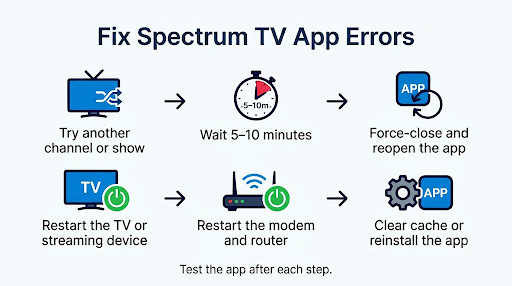
- Try another channel or show. If other channels play, the program you picked is temporarily unavailable. Wait and try later.
- Wait 5 to 10 minutes. Codes ending in 999 or 1035 often clear on their own once Spectrum’s service recovers.
- Force-close and reopen the Spectrum TV App.
- Restart your TV or streaming device. Unplug it for 60 seconds.
- Restart your modem and router. Unplug both for at least 60 seconds.
- Confirm you’re on your Spectrum In-Home WiFi, not a hotspot, guest network, or VPN.
- Clear the app cache or reinstall the app, then sign back in.
- Check for a Spectrum outage if every channel fails on every device.
What Does “Unable to Complete Request” Mean on the Spectrum TV App?
“Unable to Complete Request” is a general playback or loading error. The full message usually reads: “We’re sorry, something didn’t work quite right. Please try again later.” It means the app sent a request to Spectrum’s servers and didn’t get a usable response back.
That can happen when:
- Spectrum’s streaming servers are down or overloaded
- Your device briefly lost its internet connection
- The app couldn’t confirm your account through your Spectrum modem
- The app’s stored data (cache) is corrupted or outdated
- The app or your device’s software needs an update
On Roku, a Spectrum Community moderator described RLP-999 as a generic connectivity error, noting that the app authenticates through your modem. That’s why restarting the modem fixes this error so often, even when your internet speed looks fine.
What Does “Service Unavailable” Mean on Spectrum?
“Service Unavailable” (and the similar “Program Unavailable”) usually means the specific program or stream you chose isn’t available right now. It doesn’t always mean your service is broken. It can also point to a short Spectrum-side outage.
Spectrum’s own guidance for these codes is simple: wait a few minutes, restart the app, and try again, or choose a different program. If other channels work fine, the problem is almost certainly with that one channel or show, not your equipment.
Which Spectrum Error Codes Show These Messages?
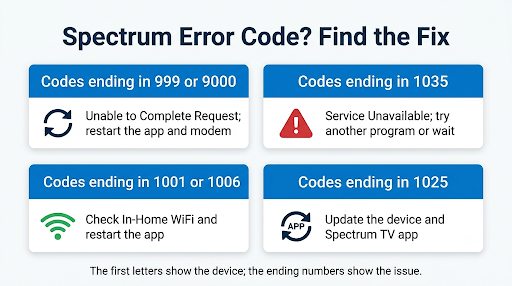
Spectrum error codes start with letters that tell you which device or platform you’re on, and end with numbers that tell you the type of problem. The 999 and 9000 endings usually mean “Unable to Complete Request.” The 1035 ending usually means “Service Unavailable” or “Program Unavailable.”
| Error Code | Where You See It | Message | First Fix to Try |
| WLP-999 | SpectrumTV.com (web browser) | Unable to Complete Request | Wait a few minutes, refresh the page, try again |
| WLP-1035 | SpectrumTV.com | Service Unavailable | Pick a different program or try again later |
| WLI-9000 / WVP-999 | SpectrumTV.com | Unable to Complete Request | Clear browser cache, sign out and back in |
| RLP-999 / RVP-999 | Roku | Unable to Complete Request | Restart modem and router, then reinstall the app |
| RLP-1035 | Roku | Program Unavailable | Try another channel, restart the app |
| RGE-1001 | Roku | Service Unavailable / can’t load channel list | Confirm In-Home WiFi, restart the app, check for outages |
| SLP-999 / SCH-1002 | Samsung Smart TV | Unable to Complete Request | Restart the app and TV, check your connection |
| SLP-1035 | Samsung Smart TV | Program not available | Choose another program or try later |
| STLP-999 | Spectrum TV App (smart TVs) | Unable to Complete Request | Restart equipment, clear cache, reinstall |
| ALP-1035 | Apple TV | Service Unavailable | Wait, restart the app, try again |
Codes can change as Spectrum updates its apps. For the latest official list, check Spectrum’s Spectrum TV App and SpectrumTV.com error code guide.
How Do You Know If the Problem Is You or Spectrum?
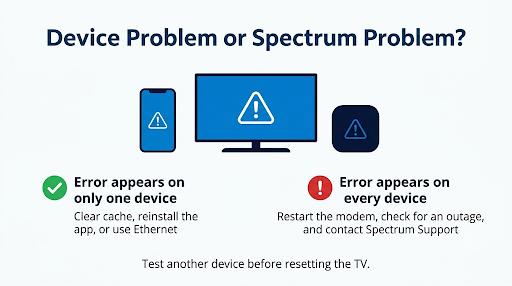
Run this quick test before you start resetting things. It saves a lot of time.
| What You Notice | Most Likely Cause | What to Do |
| Only one channel or show fails | That program is temporarily unavailable | Try again later or pick something else |
| Every channel fails on one TV, but works on your phone | Device or app issue on that TV | Clear cache, reinstall, update the TV |
| Every channel fails on every device | Home network or Spectrum outage | Restart modem, then check for outages |
| Netflix and YouTube work, but Spectrum doesn’t | Spectrum server or authentication problem | Restart modem, wait, check outage status |
| Live TV fails, but On Demand works | Live stream issue or In-Home WiFi check failing | Confirm you’re on Spectrum In-Home WiFi |
Tip: If Netflix works but Spectrum doesn’t, don’t assume your internet is fine and skip the modem restart. The Spectrum TV App checks your account through your Spectrum modem, which other apps don’t do.
How Do You Fix “Unable to Complete Request” on the Spectrum TV App?
Work through these steps in order. Test the app after each one so you know what actually fixed it.
1. Wait a Few Minutes and Try Another Channel
Spectrum lists “wait a few minutes and try again” as the first fix for most 999 and 1035 codes. Server hiccups often clear within 5 to 15 minutes. Switch to a different channel to see if the error follows you.
2. Force-Close and Reopen the App
Pressing Home doesn’t always close the app. It may keep running in the background with the same broken session.
- Roku: Press Home, wait 10 seconds, then reopen Spectrum TV.
- Samsung TV: Hold the Return/Back button until you reach the Home screen, or turn the TV off and on.
- Apple TV: Double-press the TV button and swipe the Spectrum app up.
- iPhone/iPad: Swipe up from the bottom and swipe the app away.
- Android: Go to Settings > Apps > Spectrum TV > Force Stop.
- Xbox: Highlight the app, press the Menu button, and choose Quit.
3. Restart Your Streaming Device or TV
Unplug the TV or streaming device from the wall for a full 60 seconds. A menu restart doesn’t always clear memory the way a power cycle does.
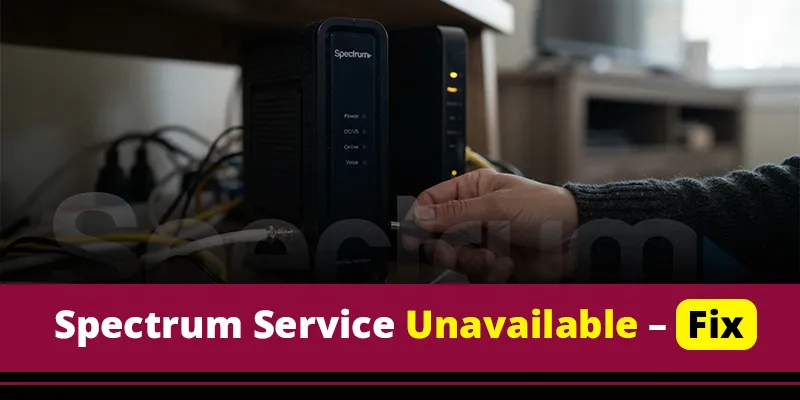
4. Restart Your Modem and Router
This is the fix that works most often for RLP-999 and STLP-999. Many Roku users report that the error goes away right after a modem and router restart.
- Unplug the power cord from your modem and router (or your Spectrum WiFi gateway).
- Wait at least 60 seconds.
- Plug in the modem first and wait until its lights are solid (2 to 5 minutes).
- Plug in the router and wait for WiFi to come back.
- Restart the Spectrum TV App.
5. Make Sure You’re on Spectrum In-Home WiFi
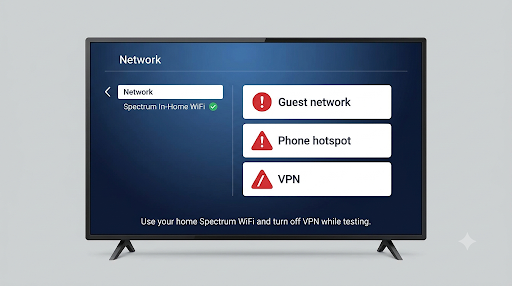
Many live channels only stream when your device is connected to the Spectrum Internet service at the address on your account. If your TV is on a mesh extender with its own network name, a guest network, a VPN, or a phone hotspot, the app may refuse to load channels. If you’re getting messages about being outside your home network, our guide on the Spectrum TV App “We See You’re Away From Home” error covers that problem in detail.
6. Clear the App Cache
Corrupted cache files can make the app send bad requests over and over.
- Roku: Press Home 5 times, Up once, Rewind twice, and Fast Forward twice. Your Roku will clear its cache and restart. This takes about a minute.
- Samsung TV: Go to Settings > Support > Device Care > Manage Storage, select Spectrum TV, then choose Clear Cache. Menu names vary a little by model year.
- Android phone or tablet: Settings > Apps > Spectrum TV > Storage > Clear Cache.
- iPhone, iPad, and Apple TV: There’s no cache button, so delete and reinstall the app instead.
- SpectrumTV.com: Clear your browser’s cache and cookies, or try a private/incognito window.
7. Uninstall and Reinstall the Spectrum TV App
A clean reinstall fixes the error for many people when nothing else does. On Roku, the order matters:
- Highlight the Spectrum TV tile on the Home screen.
- Press the * (asterisk) button and choose Remove channel.
- Unplug the Roku for 60 seconds.
- Plug it back in, add Spectrum TV again from the Streaming Store, and sign in.
On other devices, uninstall from the app menu, restart the device, then reinstall from the app store.
8. Update the App and Your Device
An old app version or outdated TV software can break playback after Spectrum updates its service.
- Roku: Settings > System > System update > Check now.
- Samsung TV: Settings > Support > Software Update.
- Apple TV: Settings > System > Software Updates.
- Phones and tablets: Update through the App Store or Google Play.
9. Sign Out and Sign Back In
Sometimes the app’s sign-in session goes stale, and the message reads “Unable to complete request. There appears to be an issue with your account.” Sign out from the app’s Settings menu, restart the device, and sign in again with your Spectrum username and password. If sign-in itself fails, see our guide to fixing Spectrum TV App sign-in errors.
How Do You Fix “Service Unavailable” on Spectrum?
Start by checking whether the error is limited to one program. If it is, there’s nothing wrong on your end. The channel or show may be blacked out, between airings, or briefly down.
If every channel says “Service Unavailable”:
- Check for an outage in the My Spectrum app or by signing in at Spectrum.net.
- Restart your modem and router.
- Confirm your device is on Spectrum In-Home WiFi.
- Restart the Spectrum TV App.
- Test on a second device. If it works there, reinstall the app on the first one.
If a few specific channels always show “Service Unavailable,” they may not be part of your current TV package, or they may not be licensed for streaming in the app. Compare the channel against your lineup in your Spectrum account.
Why Does the Spectrum App Work on One TV but Not Another?
This is one of the most common complaints in Roku and Spectrum forums. People with several TVs often see RLP-999 on one or two sets while the others work perfectly.
Usual causes include:
- Weak WiFi in that room. TVs far from the router, or connected through a mesh satellite, may drop the connection long enough to break the stream.
- Different app versions or builds. Roku TVs from different brands can run slightly different versions of the Spectrum app. On Roku, highlight the app and press * to see the version number, then compare it across your TVs.
- Older hardware. Older streaming sticks and smart TVs may lose support or run more slowly with newer app versions.
- Corrupted data on that one device. A reinstall on the failing TV often fixes it.
If the TV works when you connect it to a phone hotspot but fails on your home network, the problem is somewhere in your home network setup. Try connecting that TV by Ethernet cable, or move it to the router’s main network name instead of an extender.
Does This Error Happen With Cloud DVR and On Demand Too?
Yes. The same “Unable to Complete Request” message can appear when you play a Cloud DVR recording or an On Demand title. With recordings, it can also show up as a black screen or a recording that freezes partway through.
For Cloud DVR errors:
- Try playing a different recording to see if only one is affected.
- Wait and try again later, since recordings rely on the same servers as live streams.
- Check whether the recording has expired or was removed.
- Restart the app and your modem if every recording fails.
If you see an error right after starting a stream on another TV or phone, you may have hit Spectrum’s stream limit for your account. Learn more in our guide to the Spectrum TV App maximum video streams error.
What Mistakes Make This Error Harder to Fix?
- Restarting only the TV. If the problem is with authentication through your modem, a TV restart won’t help. Always restart the modem too.
- Using a VPN or custom DNS. Both can make the app think you’re outside your home, or block it from reaching Spectrum’s servers. Turn them off while testing.
- Doing a factory reset too early. It wipes all your apps and settings, and it rarely fixes a Spectrum-side error. Save it for last.
- Testing too fast. After restarting the modem, give it a few full minutes. Testing while it’s still connecting can make it look like the fix failed.
- Ignoring an outage. If neighbors or online forums report the same code at the same time, no home fix will work. Wait it out.
When Should You Contact Spectrum Support?
Contact Spectrum if the error lasts more than a few hours, shows up on every device, or keeps coming back after you’ve restarted your equipment and reinstalled the app. Roku’s own community moderators point out that the Spectrum app is built and maintained by Spectrum, so Spectrum is the right place to escalate app errors.
Before you call or chat, have this ready:
- The exact error code (for example, RLP-999 or WLP-1035)
- The device and model you’re using
- Whether other channels, devices, or apps work
- What you’ve already tried
Spectrum can refresh your account’s TV signal, check for line or modem problems, and confirm whether there’s an outage in your area. You can reach them through Spectrum Support or the My Spectrum app. If your error points to Wi-Fi drops or network trouble rather than a single program, our guide to Spectrum TV App connection errors goes deeper on network fixes.
Frequently Asked Questions
Is the Spectrum TV App down right now?
The fastest way to check is to sign in to the My Spectrum app or Spectrum.net and look for an outage alert for your address. If every channel fails on every device and other people online are reporting the same code at the same time, it’s likely a wider outage.
Why does Spectrum say “Unable to Complete Request” on my Roku but not my phone?
Your phone may be using cellular data or a stronger WiFi signal, or it may run a newer app version. Restart your modem, then remove and reinstall the Spectrum TV channel on the Roku. If it still fails, compare the app version on each device.
Does Spectrum error RLP-999 mean my internet is bad?
Not always. RLP-999 is a general connection error, and it can show up even when your speed test looks great. It often comes from the app failing to confirm your account through the modem, which a modem restart usually fixes.
Can I fix “Service Unavailable” myself?
Sometimes. If only one show is affected, you just need to wait or pick another program. If every channel says “Service Unavailable,” restart your modem and app and check for an outage. If that doesn’t help, Spectrum has to fix it on their end.
Why does the Spectrum app only fail on certain channels?
Some channels are only available on your In-Home WiFi, some aren’t part of every package, and some have streaming rights limits. A channel that works on your cable box may still be blocked in the app.
Will a factory reset fix the Spectrum TV App error?
It rarely helps and should be your last step. It erases all your apps and settings. Try a cache clear, an app reinstall, and a modem restart first, since those fix the same problems without the hassle.
Final Recommendation
If you see “Unable to Complete Request” or “Service Unavailable” on the Spectrum TV App, start small. Try another channel, wait a few minutes, and restart the app. If the error affects every channel, restart your modem and router, make sure you’re on Spectrum In-Home WiFi, then reinstall the app. If the problem lasts more than a few hours or shows up on every device in your home, stop troubleshooting and contact Spectrum with your exact error code. At that point, the fix is almost always on their side.