Peacock error code PAS-41004 is a payment error. It shows up when Peacock can’t finish a charge while you sign up, renew, upgrade, or redeem a promo code. Most of the time, the fix is to confirm your card details with your bank, switch to another accepted payment method like PayPal, or finish checkout on the Peacock website instead of the app.
The good news is that this isn’t a problem with your TV or your internet plan. Below, you’ll find the exact steps in the order that solves the error fastest, plus fixes for each device and what to do if your bank shows a charge but Peacock doesn’t.
Quick Overview
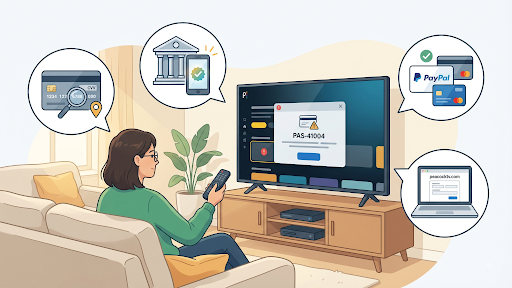
- Check your card: Make sure the number, expiration date, CVV, and billing ZIP code match what your bank has on file.
- Approve the charge: Call your card issuer or check its app. Many banks block a new online or recurring charge until you approve it.
- Switch payment methods: Try PayPal or a different credit or debit card from a U.S. bank.
- Change where you pay: Finish checkout at peacocktv.com in a browser, or use a private or incognito window.
- Turn off your VPN: Peacock only works in the U.S. and some U.S. territories, so a VPN can get your payment flagged.
- Reset the app: Restart your device, clear the Peacock cache, or reinstall the app.
- Contact Peacock support: Use the official chat at peacocktv.com/help if nothing works.
What Does Peacock Error Code PAS-41004 Mean?
PAS-41004 (also written PAS_41004) means Peacock’s payment system tried to charge your payment method and the transaction didn’t go through. You’ll usually see one of these two messages with the code:
- “We’re unable to complete your transaction right now. Please contact your card issuer for resolution.”
- “Sorry, there’s been a problem. Please try again.”
The first message tells you the bank or card is the most likely problem. The second is more generic and can also come from a short glitch in the app, the browser, or Peacock’s servers.
You might see the error while:
- Signing up for Peacock Premium or Premium Plus for the first time
- Renewing a plan after your card expired or was replaced
- Upgrading from one plan to another
- Applying a promo code or discount offer
- Restarting a canceled subscription
Why Does Peacock Error PAS-41004 Happen?
The short answer: Peacock’s payment processor couldn’t approve the charge. Here are the usual reasons, from most to least common.
| Cause | What It Looks Like | Best Fix |
| Bank fraud filter or card hold | Card works elsewhere, but Peacock fails | Approve the charge with your bank, then retry |
| Wrong or old card details | New card, moved recently, or expired card | Re-enter the card and the billing ZIP code |
| Payment type Peacock doesn’t accept | Prepaid card, gift card, or a card from a non-U.S. bank | Use PayPal or a U.S. credit or debit card |
| VPN, proxy, or location mismatch | Error appears only while a VPN is on | Turn off the VPN and retry from your home network |
| App or browser glitch | Checkout freezes or loops | Use the website, incognito mode, or clear the cache |
| Peacock server issue | Many users report the same error at once | Wait a few hours and try again |
How Do You Fix Peacock Error Code PAS-41004?
Work through these fixes in order. The first three solve the error for most people, so you may not need the rest.
1. Double-Check Your Card Details and Billing ZIP Code
A single wrong digit or an old billing address is enough to trigger PAS-41004. Your bank compares the ZIP code you type with the one on your account. If they don’t match, the charge gets declined.
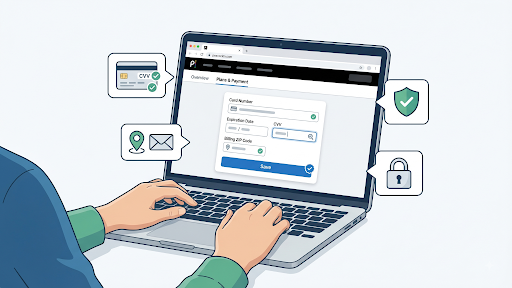
- Sign in at peacocktv.com in a web browser.
- Open your Account page and go to Plans & Payment.
- Under Payment Method, select Update Payment Method.
- Re-enter the card number, expiration date, CVV, and billing ZIP code.
- Save, then try your purchase again.
Peacock explains this process in its official guide on changing your payment method or billing address.
Pro Tip! If you recently got a replacement card because of fraud or a lost wallet, the old card number is dead even if the expiration date looks valid. Always enter the new card from scratch.
2. Call Your Bank or Check Your Card App
If the error says “contact your card issuer,” take that literally. Banks often block a first-time charge from a streaming service, especially if you’re paying for a full year at once. Open your bank app and look for a fraud alert or a “Was this you?” message. Approve it, then retry within a few minutes.
While you’re there, check that you have enough available credit or balance. Also check that online, recurring, or card-not-present payments aren’t turned off for that card.
3. Switch to PayPal or Another Card
Changing the payment method is the fix most users report working. On the Peacock website, the Plans & Payment page has a PayPal tab right next to the card option. PayPal often goes through when a card keeps failing, because PayPal handles the bank side of the charge.
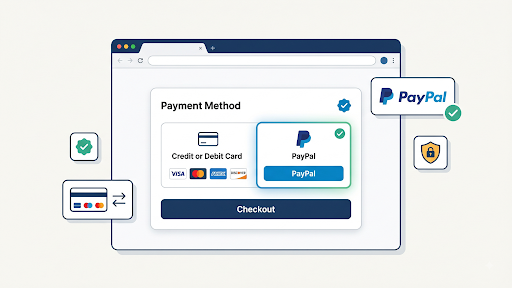
Payment options that usually work on peacocktv.com:
- Major credit cards (Visa, Mastercard, American Express, Discover)
- Debit cards linked to a U.S. bank account
- PayPal
Payment types that commonly fail with PAS-41004:
- Prepaid and non-reloadable gift cards (like a Visa or Mastercard gift card from a store)
- Cards issued by banks outside the U.S.
- Some virtual or temporary card numbers, depending on the provider
Important Point to be Considered! A Peacock gift card is different from a store-bought prepaid card. Peacock gift cards can only be used for Premium or Premium Plus bought directly through Peacock, not through Apple, Google, Roku, or another partner. Details are on Peacock’s gift card help page.
4. Pay on the Website Instead of the App (or Use Incognito Mode)
If checkout fails inside the Peacock app on your TV or phone, try paying on peacocktv.com from a computer or phone browser. Once your plan is active, just sign in on your TV with the same account.
Already on the website? Open a private or incognito window and try again. That skips old cookies, saved autofill data, and browser extensions (like ad blockers or coupon tools) that can break the payment form.
5. Turn Off Your VPN or Proxy
Peacock is only available in the United States and certain U.S. territories: American Samoa, Guam, the Northern Mariana Islands, Puerto Rico, and the U.S. Virgin Islands, according to Peacock’s availability page. A VPN, proxy, or privacy relay can make your location look different from your card’s billing address. That mismatch can get the charge blocked.
Turn the VPN off completely, connect to your regular home Wi-Fi, and try again. If you use iCloud Private Relay on an iPhone or Mac, turn it off for the checkout too.
6. Restart Your Device and Clear the Peacock Cache
When the error is a glitch and not a true decline, a clean restart often clears it. Peacock’s own troubleshooting advice is to power down or unplug your device, wait 20 seconds, then turn it back on. After that, clear the app’s cache and data, or uninstall and reinstall the app.
- Android phone or tablet: Settings > Apps > See all apps > Peacock TV > Storage & cache > Clear cache.
- Amazon Fire TV or Fire Stick: Settings > Applications > Manage Installed Applications > Peacock TV > Clear cache.
- iPhone or iPad: There’s no cache button, so delete the Peacock app and reinstall it from the App Store.
- Web browser: Clear cookies and cached files for peacocktv.com, then sign back in.
If you keep seeing the generic “Sorry, there’s been a problem” message on other screens too, our guide to the Peacock “Sorry, we’ve encountered a problem” error covers more fixes for that message.
7. Check Whether Peacock Is Down
If your card is fine and the error appears on every device, Peacock’s servers may be having a bad moment. Check an outage tracker like Downdetector or search social media for other people reporting Peacock payment problems. If lots of people are posting the same thing, wait a few hours before trying again. Retrying over and over during an outage can stack up pending holds on your card.
8. Contact Peacock Support (the Official Way)
If you’ve tried everything above, contact Peacock support through the Help Center at peacocktv.com/help. Peacock lists support hours as 7 days a week, 9 AM to 1 AM ET. The chat agent can see whether the decline is coming from Peacock’s side or from your bank.
Important Point to be Considered! Watch out for fake “Peacock customer service” phone numbers. Many show up in search results, on Facebook pages, and on random help sites, and they aren’t run by Peacock. Never share your card number, bank login, or a one-time code with anyone who calls or texts you about a Peacock payment. Use only the contact options inside peacocktv.com/help.
How Do You Fix PAS-41004 When Using a Promo Code?
You still need a valid payment method on file to redeem a Peacock promo code, even if the offer makes your first month free or cheaper. Peacock confirms this on its promo code payment help page. If your card is declined, the code fails too, and you can see PAS-41004.
Try these steps:
- Add or fix your payment method first, then enter the promo code.
- Check the offer’s expiration date and whether it’s only for new subscribers.
- Redeem the code on peacocktv.com in a browser, not inside a TV app.
- Make sure you’re signed in to the right Peacock account, especially if your household has more than one.
What If You Subscribe Through Apple, Google Play, Roku, or Amazon?
If you subscribe or pay inside an app store, that store bills you, not Peacock. Peacock says that in this case you change your billing info through the third-party subscription manager. So your fix happens in the store’s settings, not on peacocktv.com.
| Where You Pay | Where to Fix the Payment |
| Peacock website (peacocktv.com) | Peacock Account > Plans & Payment > Update Payment Method |
| iPhone, iPad, or Apple TV (App Store) | Your Apple Account payment settings and Subscriptions |
| Android or Google TV (Google Play) | Google Play > Payments & subscriptions |
| Roku | my.roku.com > Update payment method |
| Amazon Fire TV | Your Amazon account > Memberships & Subscriptions |
This also works in reverse. If your card keeps failing on peacocktv.com, subscribing through your phone’s app store or your Roku account is a solid workaround. The store charges the card it already has on file.
How Do You Fix PAS-41004 on Your Device?
The cause is almost always the payment, not the device. Still, where you pay changes which fix works best.
- Roku, Fire TV, Samsung, LG, Vizio, or other smart TVs: Typing card details with a remote is slow and easy to get wrong. Pay on peacocktv.com from your phone or computer instead, then sign in on the TV.
- iPhone and iPad: Try the in-app purchase through Apple, or pay in Safari at peacocktv.com. If one fails, the other often works.
- Android phones and Google TV: Clear the Peacock cache first. Then try Google Play billing or the website.
- Computer (Windows or Mac): Use an incognito window, turn off ad blockers and coupon extensions, or try a different browser.
- Xfinity, Instacart+, or other partner offers: These activate through the partner, so a card error may not be the real issue. See our fixes for the Peacock Xfinity Rewards activation loop and for when the Instacart+ Peacock benefit won’t link.
What If Your Bank Shows a Charge but Peacock Still Shows the Error?
What you see is likely a pending authorization, not a completed payment. When a transaction fails, your bank may still place a temporary hold. Holds like this usually drop off on their own within a few business days, though the timing depends on your bank.
Before you try again, check whether the payment actually went through:
- Sign in at peacocktv.com and open Plans & Payment.
- Look at your current plan and select View Payment History.
- If the plan shows as active, you’re done. Just sign out and back in on your devices.
- If nothing shows, wait for the hold to clear or ask your bank whether the charge is pending or posted.
Pro Tip! Don’t hit the subscribe button ten times in a row. Each try can create another pending hold. And if one goes through, you may end up with a second subscription on a different account.
If you paid and Peacock still asks you to subscribe, that’s a different problem. Our guide on Peacock saying upgrade required when you’re already subscribed walks through it.
Common Mistakes That Keep PAS-41004 Coming Back
- Using the same declined card over and over without calling the bank first.
- Leaving a VPN on because you forgot it runs in the background.
- Fixing the card on peacocktv.com when the plan is actually billed through Apple, Google, Roku, or Amazon.
- Signing in to the wrong account, like a spouse’s account or an old email address.
- Trusting a “Peacock support” phone number from a social media post or a random website.
How Is PAS-41004 Different From Other Peacock PAS and PPG Errors?
All PAS codes are tied to Peacock accounts and payments, but they don’t all mean the exact same thing. People also report PAS_41000, PAS_41008, and PAS_41009, and the same basic checks (payment details, bank approval, another method, the website) are a good first step for each. If your error starts with OVP, it’s usually a playback or streaming problem, not a payment problem.
Errors that start with PPG often show up when activating Peacock through a partner or bundle. For one of the most common ones, see our guide to Peacock error code PPG_0022.
Frequently Asked Questions
Is Peacock error PAS-41004 my bank’s fault or Peacock’s?
It’s usually on the bank or card side. If the message tells you to contact your card issuer, the bank declined or blocked the charge. If the error says “Sorry, there’s been a problem” and your card works everywhere else, it’s more likely a temporary glitch on Peacock’s side or in your app.
Does Peacock accept prepaid cards or Visa gift cards?
Store-bought prepaid and non-reloadable gift cards often fail at Peacock checkout. That’s one of the most common reasons people see PAS-41004. Use a regular credit or debit card, PayPal, or an official Peacock gift card instead.
Can I pay for Peacock from outside the United States?
Peacock is only offered in the U.S. and certain U.S. territories, so payments from other countries or with non-U.S. cards often fail. If you live in the U.S. and are traveling, set up or fix your payment once you’re back home, or use an app store account that’s already billing you in the U.S.
Will my Peacock account be canceled if the payment keeps failing?
If a renewal payment fails and isn’t fixed, your paid plan can lapse and you may lose Premium access until a payment goes through. Your account and sign-in usually stay in place, so updating the payment method restores the plan. Fix it as soon as you see the error so your watch history and profiles stay tied to the same account.
Why does Peacock say “We’re unable to complete your transaction right now”?
That message means the payment processor sent back a decline. Common triggers are a fraud hold, low available balance, a billing ZIP code that doesn’t match, or a card type Peacock doesn’t accept. Call the number on the back of your card and ask whether a charge from Peacock was blocked.
Is there an official Peacock phone number for billing errors?
Use the contact options at peacocktv.com/help instead of numbers you find in search results or on Facebook. Many numbers posted online are not run by Peacock, and some are scams designed to collect card details.
Final Recommendation
If you’re staring at PAS-41004 right now, start with your bank. Approve the charge, double-check the billing ZIP code, and try again on peacocktv.com in a browser. If it still fails, switch to PayPal or subscribe through your phone’s app store or Roku account. Turn off any VPN before every attempt.
Still stuck after all of that? Reach out through the official Peacock Help Center and tell the agent the exact error message and code. That gets you to a real fix faster than guessing.